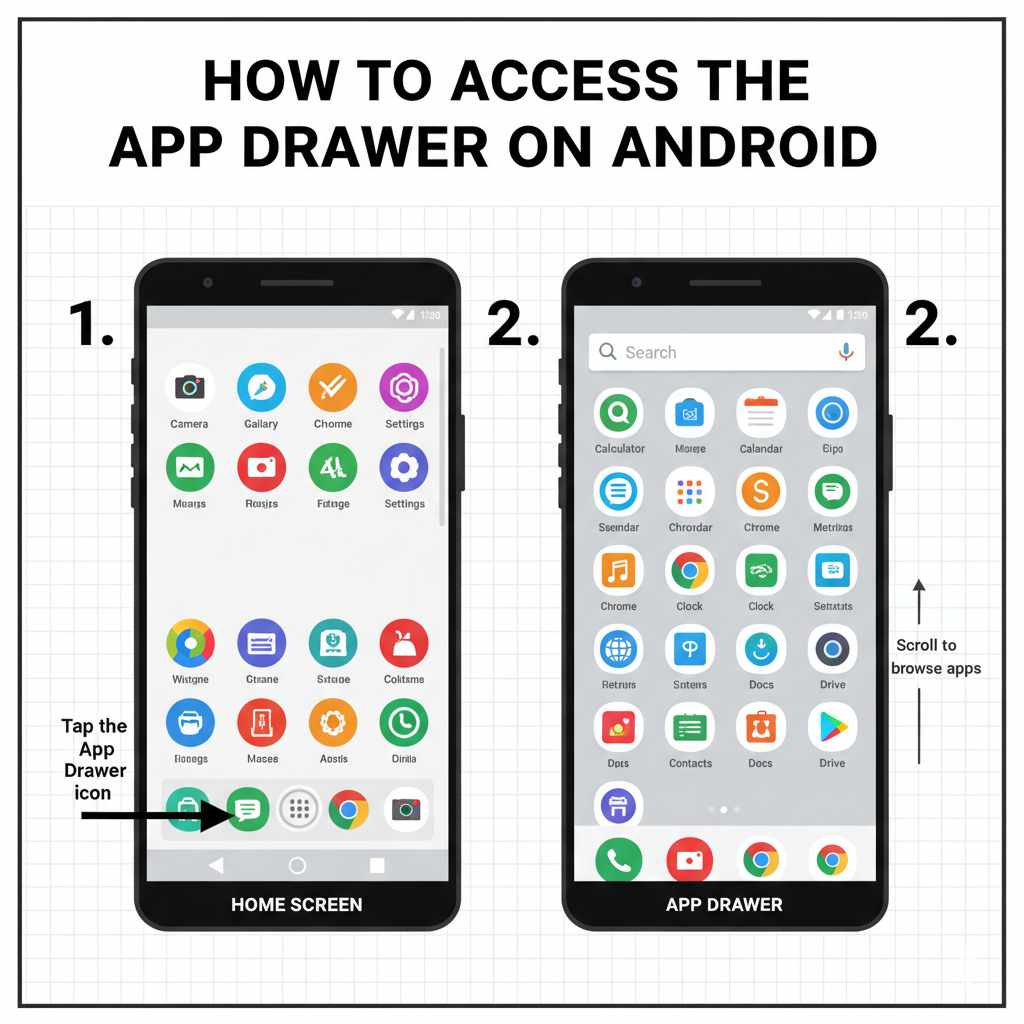
To open the app drawer on most Android phones, swipe up from the bottom of the home screen to reveal every installed app in one list. If swiping up does nothing, your launcher may show all apps on the home screen by default, or need a different gesture. This guide covers the swipe-up method, what to do when it does not work, and how to organize the drawer once you are in.
For a related storage or furniture fix, How To Repair Broken Drawer Slides Like A Pro helps readers compare the next practical option.
For a related storage or furniture fix, How To Put On Drawer Slides: Installation helps readers compare the next practical option.
For a related storage or furniture fix, How To Make A Drawer Lock: Diy Methods helps readers compare the next practical option.
What Exactly Is the App Drawer?
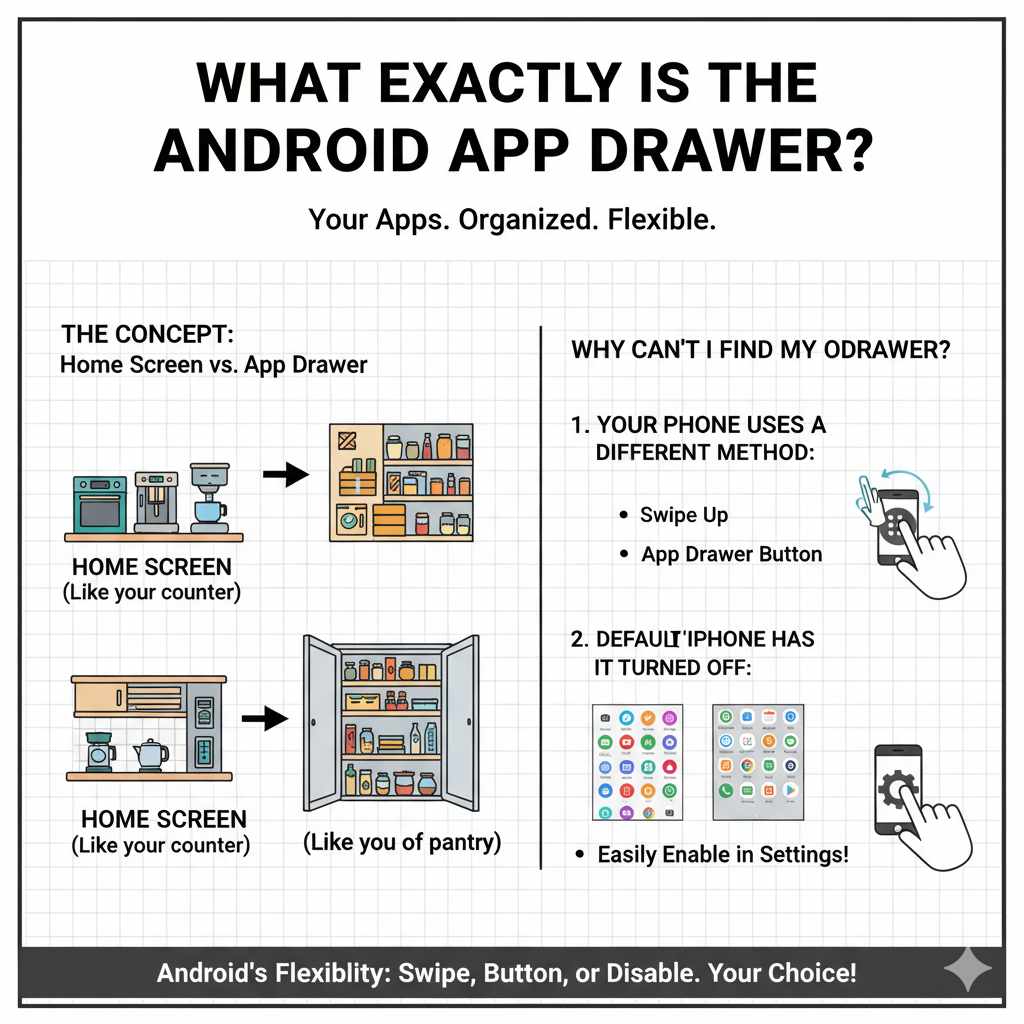
Think of your phone’s home screen as your kitchen counter. You keep the things you use every day right there—your coffee maker, your toaster, maybe a fruit bowl. It’s organized for quick access. The app drawer, on the other hand, is like your pantry. It holds everything else you own, all neatly stored and ready when you need it, but kept out of the way to avoid clutter.
The app drawer is a dedicated screen on your Android phone that lists every single app you have installed. It keeps your main home screens tidy by storing the apps you don’t use every single day. This is one of the biggest differences between Android and iPhones. iPhones place every app on the home screens, while Android gives you the choice to keep things minimalist.
Why Can’t I Find My App Drawer?
If you’re struggling to find the app drawer, there are usually two simple reasons. Understanding them will solve the mystery right away.
- Your Phone Uses a Different Method: Most modern Android phones use a simple “swipe up” gesture. However, some older phones or phones with specific themes (called launchers) might have a button. This button often looks like a circle with a grid of dots inside.
- Your Phone Has It Turned Off: Some manufacturers, in an effort to appeal to users coming from iPhones, set up their phones to place all apps on the home screen by default. In this mode, the app drawer is disabled. The good news is that you can almost always turn it back on.
Don’t feel discouraged if yours looks different. The beauty of Android is its flexibility. We’ll walk through how to handle either of these situations, step-by-step.
The Easiest Way to Open Your App Drawer: The Swipe Up
For over 90% of modern Android phones, this is the only step you’ll need. It’s so simple you’ll wonder how you ever missed it. Let’s do it together.
- Go to Your Home Screen: This is the main screen you see when you unlock your phone. It has your wallpaper and your most-used app icons.
- Find an Empty Space: Look for any part of the screen that doesn’t have an icon or a widget on it.
- Swipe Up: Place your finger on the bottom edge of the screen (often right above the navigation bar or dock) and swipe straight up. Don’t press too hard, just a light, quick flick upwards.
That’s it! A new screen should slide up from the bottom, revealing all your apps, usually in alphabetical order. You can now scroll up and down to see everything you have installed. This simple gesture is the key to unlocking the full power of your phone.
What About the Old App Drawer Button?
If you have an older Android device or are using a specific custom launcher, you might not use the swipe-up gesture. Instead, look for an icon on your home screen’s dock (the bottom row of permanent apps). This icon typically looks like a circle with a grid of dots. Tapping this icon will open the app drawer, just like swiping up does on newer phones.
Troubleshooting: What to Do If Swiping Up Doesn’t Work
So you swiped up, and nothing happened. Or maybe swiping up just opened a search bar. Don’t panic! This usually means your phone is set to the “Home Screen Only” layout. Let’s fix that. The solution is hiding in your phone’s settings.
How to Enable the App Drawer in Your Settings
The exact steps can vary slightly depending on your phone’s brand (like Samsung, Google, or OnePlus), but the general idea is the same. You’re looking for “Home screen” settings.
Here’s a general guide:
- Long-press on an empty spot on your home screen. This will usually make the screen “zoom out” and show customization options at the bottom.
- Look for an icon or button labeled “Settings,” “Home screen settings,” or a gear icon. Tap it.
- Inside these settings, search for an option called “Home screen layout,” “Home screen style,” or “Customize Home screen.”
- You will likely see two choices: “Home screen and Apps screen” (or similar) and “Home screen only.”
- Select the option that includes the “Apps screen” or “App Drawer.” Tap “Apply” or “Save.”
After you apply the change, go back to your home screen and try swiping up again. Your app drawer should now appear! For more specific instructions, you can visit official support pages, like the official Android help center, which provides guidance for many common tasks.
To make it even easier, here is a table showing where to find this setting on popular Android brands:
| Phone Brand | Path to App Drawer Setting |
|---|---|
| Samsung (One UI) | Long-press Home Screen → Settings → Home screen layout → Select “Home and Apps screens” |
| Google Pixel (Pixel Launcher) | The app drawer is enabled by default and cannot be disabled in standard settings. Swiping up always works. |
| OnePlus (OxygenOS) | Long-press Home Screen → Home settings → Launcher layout → Select “Home screen and Drawer” |
| Xiaomi (MIUI) | Settings → Home screen → Home screen → Select “With App drawer” |
The “Genius Method”: Using Search as Your App Drawer
While finding and organizing your app drawer is essential, there is an even faster, more efficient way to launch apps. This is the method that power users swear by, and it’s built right into your phone. The “genius method” is simply using the search function.
Instead of swiping up and then scrolling through dozens of apps to find the one you want, you can do this:
- Swipe Up to Open the Drawer: Perform the same gesture as before.
- Start Typing Immediately: Notice that a search bar appears at the top of the app drawer. As soon as the drawer is open, just start typing the name of the app you want. You don’t even need to tap the search bar first.
- Tap to Launch: After typing just two or three letters, your phone will almost always show you the exact app you’re looking for. Tap the icon to open it.
This method is incredibly fast and saves you the mental energy of visually scanning for an icon. It turns a multi-second process of hunting and scrolling into a one-second action of “swipe, type, tap.” Once you get used to this workflow, you’ll never go back to scrolling again.
Organizing Your App Drawer for a Better Experience
Now that you know how to access your app drawer, let’s make it work for you. A little organization can turn a messy list of apps into a powerful tool. Most Android app drawers offer several ways to customize your layout.
Sorting Your Apps
By default, most app drawers sort apps alphabetically. This is predictable and easy to navigate. However, you may have other options. While in the app drawer, look for a menu button (often three dots in the top-right corner). Tap it, and you may see a “Sort” option. Some launchers allow you to sort by:
- Alphabetical: The standard A-Z listing.
- Custom Order: This allows you to drag and drop apps anywhere you like, putting your most-used ones at the top.
- Install Date: Puts your newest apps first, which is great for finding something you just downloaded.
Creating Folders in the App Drawer
Just like on your home screen, you can group apps into folders within the app drawer itself. This is perfect for decluttering. You could create folders for “Games,” “Work,” “Finance,” or “Photo Editing.”
To create a folder, simply press and hold one app icon and drag it directly on top of another. Your phone will automatically create a folder containing both apps. You can then tap the folder to open it and give it a name.
Hiding Apps You Rarely Use
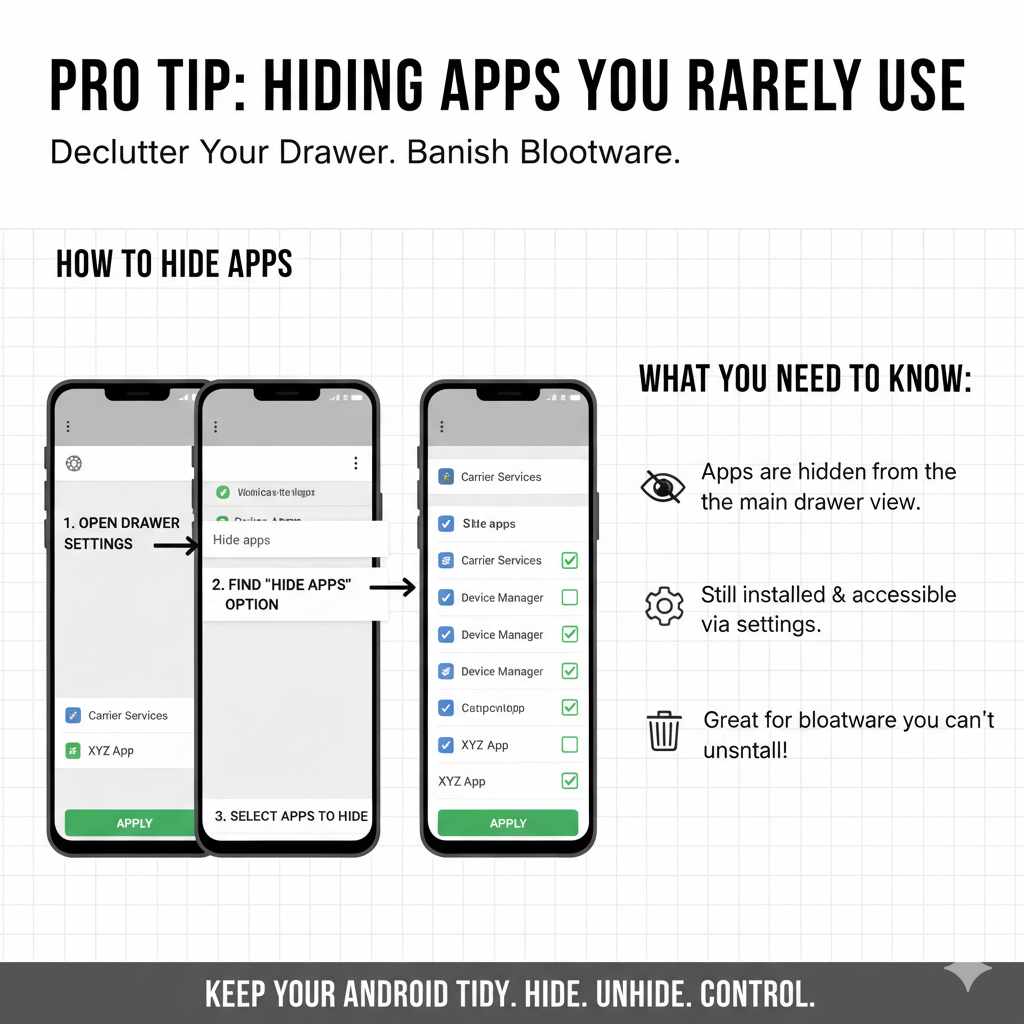
Do you have apps from your phone carrier or manufacturer that you never use but can’t uninstall? These are often called “bloatware.” A great feature of many app drawers is the ability to hide apps from view.
To hide an app, go into your app drawer’s settings (usually by tapping the three-dot menu). Look for an option called “Hide apps.” Tapping this will show you a list of all your apps; simply select the ones you want to hide, and they will vanish from the drawer. They are still installed and can be unhidden from the same menu if you ever need them again.
App Drawer vs Home Screen Only: Which is Better?
Choosing between using an app drawer and putting all your apps on the home screen is a personal preference. There is no right or wrong answer, but understanding the pros and cons of each can help you decide what works best for you.
| Feature | App Drawer Layout (Home & Apps Screens) | No App Drawer Layout (Home Screen Only) |
|---|---|---|
| Organization | Keeps home screens clean and minimalist. Only your most important apps are visible. | All apps are visible and accessible by swiping left or right. Can get cluttered quickly. |
| App Discovery | Apps are in one central, alphabetical list, which can be easier to scan. | Requires remembering which home screen page an app is on. Folders are essential for management. |
| Customization | Offers maximum flexibility. You can use beautiful wallpapers without icons covering them up. | Less flexible aesthetically, as every app takes up space. Looks similar to an iPhone’s layout. |
| Best For | Users who value a tidy, organized phone and want to separate primary apps from secondary ones. | Users who are used to the iPhone layout or who want every single app visible at all times. |
Ultimately, the best setup is the one that makes your phone feel fast, efficient, and easy to use. I recommend starting with the app drawer enabled. It’s the classic Android experience and offers a level of organization that most people find incredibly helpful.
Frequently Asked Questions (FAQ)
What is an app drawer?
The app drawer is a section of the Android user interface that houses all the applications installed on your device. It keeps your main home screens from getting cluttered, acting like a complete library of your apps.
Why did my app drawer disappear?
Your app drawer most likely disappeared because your phone’s home screen layout was changed to “Home screen only” mode. This can sometimes happen after a system update or if a setting was changed accidentally. You can re-enable it in your phone’s “Home screen settings.”
Can I get rid of the app drawer?
Yes. If you prefer having all your apps on your home screens (like an iPhone), you can go into your phone’s “Home screen settings” and select the “Home screen only” layout. This will disable the app drawer.
How do I add an app from the drawer to my home screen?
It’s easy! First, open the app drawer. Then, find the app you want to add. Press and hold its icon for a second. Without lifting your finger, drag the icon to the edge of the screen, and your home screen will appear. You can then place the icon wherever you like.
What’s the difference between an app drawer and a home screen?
The home screen is for your shortcuts, widgets, and most frequently used apps. It’s a customizable dashboard. The app drawer is a comprehensive, non-customizable list of every single app on your phone. Think of the home screen as your favorites list and the app drawer as the full catalog.
Can I change how my app drawer looks?
To a certain extent, yes. Some phones let you change the grid size (how many icons fit on the screen) or create folders. For a total visual overhaul, you can install a third-party “launcher” app from the Google Play Store, like Nova Launcher or Microsoft Launcher. These apps offer deep customization for your app drawer and entire home screen experience.
Do iPhones have an app drawer?
Traditionally, iPhones did not have an app drawer. All apps were placed on the home screens. However, starting with iOS 14, Apple introduced the “App Library,” which functions very similarly to Android’s app drawer. It automatically organizes all of a user’s apps into a separate screen.
You’re in Control Now
Finding the app drawer might seem like a small thing, but it’s a huge step toward mastering your Android phone. You’ve now learned the simple swipe to reveal all your apps, how to troubleshoot if it’s missing, and even how to use the “genius” search method to launch apps faster than ever before. You’re no longer limited to what you can see on your home screen; you have easy access to every tool on your device.
Remember, your phone is supposed to work for you, not the other way around. By understanding and organizing your app drawer, you’ve made your device cleaner, more efficient, and uniquely yours. Go ahead and start organizing—you’ve got this!