How To Lock Eufy Smart Lock: Proven Guide
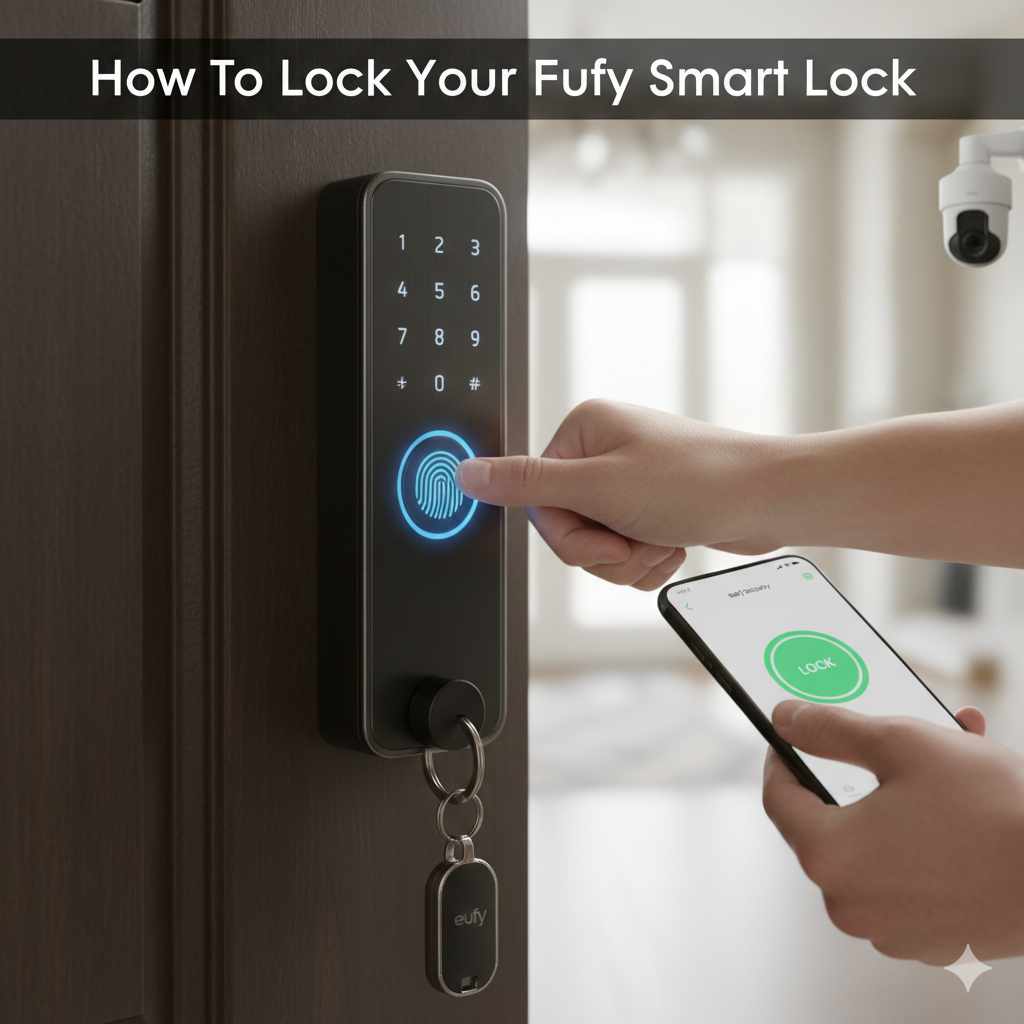
To lock your Eufy Smart Lock, you can simply turn the thumb-turn knob on the interior base, use the key, or utilize the Eufy Security app or keypad for remote or coded locking. Most models lock automatically after a set time, offering streamlined home security.

eufy Security
eufy Security Smart Lock C220, Fingerprint Keyless…
- 6 Ways to Unlock: Unlock with a touch for less than 1s with fingerprint lock. You can also open your front door lock via the eufy…
- 8 Months Battery Life: With 8 AA batteries, Smart Lock C220 runs around 8 months. Experience ultimate convenience and peace of min…
- Self-learning AI: Fingerprint door lock recognition gets more precise with every touch, so you don't have to try agian and again t…
As an Amazon Associate I earn from qualifying purchases.
Welcome, friend! Settling into a freshly styled home is wonderful, but keeping it safe shouldn’t feel complicated. If you’ve just installed your sleek Eufy Smart Lock, you might wonder about the “how-to” of actually locking it. It seems simple, but knowing all the ways gives you total peace of mind. Many of us worry about whether we remembered to lock up when we rush out the door. Don’t fret! Eufy builds these locks to be incredibly easy and reliable.
You deserve a home that feels both beautiful and secure without constant effort. This guide will walk you through every method—manual, automatic, and remote—to ensure your Eufy lock is snug and secure, every single time. Let’s dive into making smart security simple and stylish!
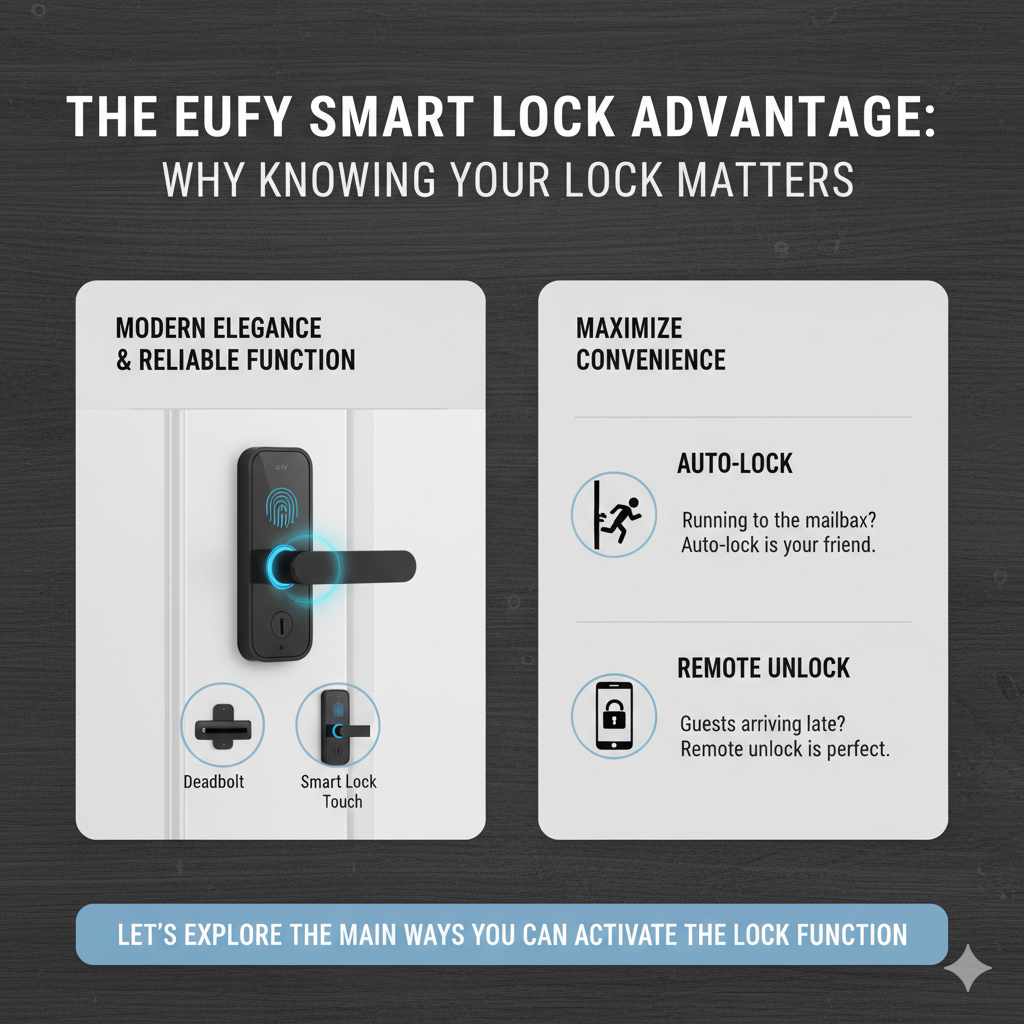
The Eufy Smart Lock Advantage: Why Knowing Your Lock Matters
A smart lock is more than just a way to keep keys inside. It’s about integrating security seamlessly into your home’s look and your daily routine. When you choose a Eufy Smart Lock—whether it’s the Deadbolt or the Smart Lock Touch—you’re choosing modern elegance married with reliable function. But with different features comes the need for clear instructions.
Understanding precisely how to lock Eufy Smart Lock in various situations allows you to maximize convenience. Are you running to the mailbox? Auto-lock is your friend. Are guests arriving late? Remote unlock is perfect. Let’s explore the main ways you can activate the lock function.
Method 1: Manual Locking—The Classic, Reliable Way
Sometimes, the best method is the straightforward one. Manual locking on your Eufy device offers instant confirmation that your home is secure. This is perfect for when you are inside and heading out quickly, or when you want that tactile reassurance.
Locking Using the Interior Thumb-Turn Knob
This is the most intuitive locking method, much like a traditional deadbolt. It’s located on the inside side of the lock assembly.
- Approach the interior side of the Eufy Smart Lock.
- Locate the large, usually round or stylishly shaped knob (the thumb-turn).
- Rotate the knob clockwise (usually) until you feel or hear a distinct click or stop. This movement extends the deadbolt into the door frame.
Pro Tip for Style: If you’ve installed your lock correctly, this knob should feel comfortable and easy to grip, blending seamlessly with your interior hardware.
Locking Using the Physical Security Key
Every Eufy Smart Lock comes with physical backup keys. These are crucial for emergencies, power outages, or when you simply prefer a key.
- Insert the physical key into the keyhole located on the exterior keypad housing.
- Turn the key clockwise (or according to the key’s direction, usually 90 degrees) until the bolt is fully extended.
- Remove the key.
It is always wise to keep a spare physical key in a secure, undisclosed location outside the home, perhaps with a trusted neighbor or in a high-security storage box, just in case the batteries die unexpectedly.
Method 2: Automatic Locking—The Set-It-and-Forget-It Security
My favorite feature for busy mornings? Auto-lock! This feature removes the “did I or didn’t I?” anxiety entirely. Eufy locks can be set to secure themselves a few moments after the door closes.
Setting Up Auto-Lock Timing in the Eufy Security App
To ensure your lock operates automatically, you must program the timing within the Eufy Security mobile application. If you haven’t downloaded the app or paired your lock, now is the time to do so!
Steps to Configure Auto-Lock:
- Open the Eufy Security App on your smartphone.
- Navigate to the Device Settings menu for your specific Smart Lock.
- Look for the Auto-Lock or Auto-Lock Settings option.
- You will usually be presented with a time selection. Common options range from 5 seconds to 3 minutes. Select the duration that suits your household. For maximum security, 10 or 15 seconds is often recommended.
- Save the settings.
Once set, every time the door closes, if the lock is recognized as being unlocked, it will autonomously engage the deadbolt after the defined countdown. This is a fantastic feature for improving door security compliance across your household.
Understanding Auto-Lock vs. Auto-Unlock
It’s important not to confuse these two settings. Auto-Lock secures the door on a timer. In contrast, Auto-Unlock (available on some models) uses geolocation or established user codes to disengage the bolt when you arrive home. For answering how to lock Eufy Smart Lock, we are focusing purely on the engagement of the bolt.
Method 3: Digital Locking—App and Keypad Control
This is where the “smart” part truly shines. Controlling your door lock from a distance or via a quick code tap provides unmatched convenience.
Locking Remotely Using the Eufy Security App
This method requires your lock to be connected to Wi-Fi (usually via a separate Wi-Fi bridge accessory sold by Eufy, depending on the model). This allows you to secure your home from anywhere in the world.
- Ensure your phone has an active internet connection (Wi-Fi or cellular data).
- Open the Eufy Security App.
- Tap on the image or name of your Smart Lock.
- On the main screen, you will see the current status (Locked or Unlocked). Tap the Lock icon (often a padlock symbol) to send the command to the lock.
The app provides instant feedback, letting you know that the bolt has fully engaged. This is perfect if you are already down the street and suddenly wonder if you remembered to lock up.
Locking via the Exterior Keypad
While the keypad is most famous for unlocking, many users forget you can also lock the door using it, sometimes without entering a code!
Using the Instant Lock Button:
Many Eufy models feature a dedicated “Lock” button on the exterior panel. This is the quickest way to secure the door when leaving.
- Ensure all users know the location of the dedicated lock button (often marked with a lock symbol).
- Press and hold the Lock button for a second or two.
- The keypad will illuminate, and the bolt will extend.
Locking via User Code (If Applicable):
On some advanced touch models, you can lock the door by entering a specific user code differently than the one used for unlocking. For example, some systems require you to enter the code followed by the pound (#) key to initiate a lock sequence, rather than just entering the code to unlock.
Always consult your specific Eufy model’s manual to confirm the precise keystroke for code-based locking, as functions can vary slightly between the Deadbolt series and the handle-style locks.
Troubleshooting Common Locking Issues
Even the best technology can sometimes need a friendly nudge. If you are struggling with how to lock Eufy Smart Lock, these quick fixes usually resolve most minor snags.
When the Door Won’t Latch: Physical Alignment
The most common reason a lock fails to engage is physical obstruction, not an electronic failure. This is identical to traditional deadbolts!
- Check the Strike Plate: Ensure the metal plate on the door frame where the bolt slides in is perfectly aligned. If the door sags or shifts slightly, the bolt might hit the frame instead of entering the hole.
- Inspect for Obstruction: Make sure nothing is blocking the bolt path—no misaligned weather stripping, rugs pushed against the door, or items wedged in the jam.
- Test with the Door Ajar: Try engaging the lock while the door is slightly open (but still pressing firmly against the frame). If it locks easily when open, the issue is alignment when the door is closed and latched. You may need to adjust the strike plate screws, following guidance from resources like the Rhode Island Building Code standards for door clearances.
Dealing with Battery Issues
Low power is another frequent culprit for erratic behavior.
If the physical action is sluggish or the keypad lights dim when you try to lock, the batteries likely need replacing. Eufy provides low-battery warnings through the app, but it’s a good habit to replace the standard AA batteries every 6–12 months, depending on usage.
When Auto-Lock Fails to Engage
If auto-lock isn’t working, the lock usually needs to confirm the door is fully closed. This confirmation often relies on a small magnetic sensor on the latch mechanism.
- Ensure the corresponding magnet/sensor on the door frame is clean and correctly positioned relative to the lock body.
- Re-open the Eufy App and check the Auto-Lock settings to ensure the feature is toggled ‘On’ and the time delay is active.
Eufy Lock Model Comparison: Locking Capabilities
Eufy has several popular lock styles. While the core locking principles are similar, the specific method you rely on most might depend on which model enhances your home’s exterior design best.
Here is a quick look at how different popular models handle locking:
| Locking Method | Eufy Basic Deadbolt | Eufy Smart Lock Touch | Eufy Smart Lock Wi-Fi |
|---|---|---|---|
| Thumb-Turn (Manual) | Yes | Yes | Yes |
| Physical Key | Yes | Yes | Yes |
| Auto-Lock (Timed) | Yes (Configurable) | Yes (Configurable) | Yes (Configurable) |
| App Remote Locking | Requires Wi-Fi Bridge | Requires Wi-Fi Bridge | Built-in Wi-Fi/Bridge |
| Exterior Keypad Lock Button | No (Uses Code only) | Yes | Yes |
Maximizing Security: Best Practices for Your Eufy Lock
Achieving reliable security involves setting up the lock correctly and maintaining good habits. Here are some design-focused and practical tips to ensure your investment works perfectly.
Importance of Proper Installation and Alignment
As a design enthusiast, nothing ruins a look faster than a poorly aligned item. For your lock, alignment is critical for both function and security. A lock that isn’t plumb (perfectly vertical) will wear out faster and may fail to throw the bolt completely.
- When mounting, use a level to ensure the exterior and interior components are perfectly straight before tightening screws.
- If you are unsure about alignment, consult professional installation guides. Even slight misalignment can affect the door’s ability to close securely against the weather stripping.
Managing User Codes for Guest Access
A key strength of smart locks is managing who has access and when. If you frequently have house cleaners, dog walkers, or relatives stopping by, use the app to set timed or recurring codes.
For example, set up a unique code for your dog walker that only activates between 1 PM and 3 PM on Tuesdays and Thursdays. When they are finished, you can easily delete that code, instantly revoking their access without needing to change physical keys.
Updating Firmware for Optimal Performance
Just like your phone or laptop, your smart lock needs periodic software updates (firmware). These updates often contain bug fixes that improve battery life, enhance communication speeds, and patch security vulnerabilities.
- Check the Eufy Security App regularly (when you see a notification, act on it!).
- Ensure the lock has sufficient battery power before starting a firmware update, as interruptions can cause issues.
- Updates usually happen automatically when connected to the bridge or Wi-Fi, but keep an eye on the status bar in the app.
Enhancing Security with Geolocation Features
For those of us who value seamless transitions between being home or away, geolocation features within the Eufy ecosystem can automate the locking process without you pressing a button. This ties into the “set it and forget it” idea but uses your phone’s location data.
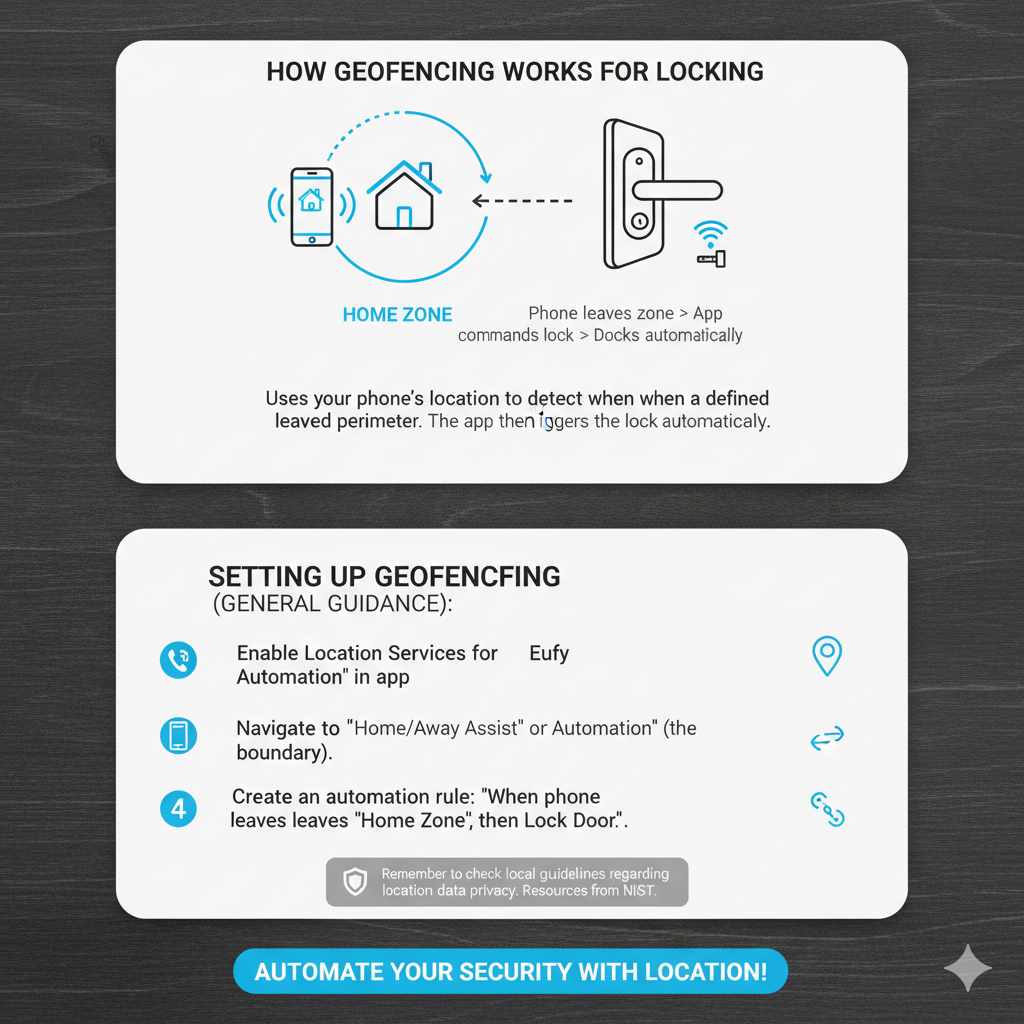
How Geofencing Works for Locking
If your Eufy system is set up with the necessary Wi-Fi bridge/hub, you can activate Geofencing within the Eufy app. This uses the location services on your phone to determine when you leave a specific boundary around your home.
When the app detects that the last person using the app has left the defined perimeter (e.g., you’ve driven three blocks away), it can be programmed to send a command to the lock to engage the deadbolt. This acts as an advanced, automatic lock that triggers based on your presence, not just the door closing.
Setting Up Geofencing (General Guidance):
- Ensure Location Services are enabled for the Eufy Security App on your phone.
- Navigate to the ‘Home/Away Assist’ or ‘Automation’ section in the app.
- Define your home zone radius (the boundary).
- Create an automation rule: “When phone leaves ‘Home Zone,’ then Lock Door.”
Remember to check local guidelines regarding location data privacy. Resources from organizations focused on digital safety, such as the National Institute of Standards and Technology (NIST), emphasize understanding how apps use location data for better control over your digital footprint.
Maintenance Schedule for Longevity and Reliability
A beautiful security system is only useful if it works reliably. Just like you maintain your home’s finishes to keep them looking fresh, your smart lock needs simple, periodic maintenance.
Quarterly Maintenance Checklist:
| Task | Frequency | Why It Matters |
|---|---|---|
| Battery Check | Every 3 Months | Prevents unexpected lock failure and alerts you before power drains critically. |
| Wipe Exterior Keypad | Monthly | Removes fingerprint oils that can obscure touch sensors or keys. |
| Check Door Alignment | Every 6 Months | Ensures the deadbolt slides smoothly into the strike plate without forcing the mechanism. |
| Test All Manual Methods | Quarterly | Confirm the physical key works perfectly and the thumb-turn engages smoothly. |
| Update Firmware | As released | Keeps security protocols current and improves operational smoothness. |
By spending just a few minutes every few months on this simple check-up, you ensure that when you need to know how to lock Eufy Smart Lock, the answer is always “instantly and effortlessly.”
Frequently Asked Questions (FAQ) About Locking Your Eufy Smart Lock
Q1: Can my Eufy Smart Lock lock itself if the power goes out?
A: Yes. Eufy Smart Locks run on standard AA batteries. They operate completely independently of your home’s main electrical power. If the power goes out, you can still lock and unlock the door manually with the thumb-turn or your physical key.
Q2: How do I temporarily stop the Auto-Lock feature without going into the app?
A: While the deep settings are in the app, most Eufy models allow you to temporarily bypass Auto-Lock for a period by manually unlocking the door and then immediately locking it using the thumb-turn or key after you re-enter. If you cycle the lock manually, the Auto-Lock timer usually resets and won’t engage until the next time the door is manually unlocked.
Q3: What is the difference between locking using a code and using the dedicated lock button on the keypad?
A: The dedicated lock button is usually an instant, dedicated action that requires only one press. Locking via a code often simulates the user entering, and you may have to enter a specific sequence (like code + # key) to trigger the lock action instead of the unlock action.
Q4: What should I do if my Eufy Smart Lock doesn’t lock from the app?
A: First, check your internet connection and ensure your lock is properly connected to Wi-Fi or the bridge. If the connection is stable but the issue persists, try refreshing the app or restarting the lock by removing and reinserting the batteries. Also, confirm that firmware is up to date, as outdated software can sometimes cause delayed or failed commands.
Q5: Can I lock my Eufy Smart Lock from outside without a phone or key?
A: Yes! Most Eufy Smart Locks allow you to lock the door from the outside using the keypad. You can either press the dedicated lock button (if available) or follow a quick code-based locking method, depending on your model. This makes it easy to secure your home even if you don’t have your phone or key with you.
Conclusion: Smart, Simple, and Secure—Every Time
Locking your Eufy Smart Lock isn’t just about securing your door—it’s about creating a seamless routine that fits your lifestyle. Whether you prefer the reliability of the thumb-turn, the convenience of the keypad, or the flexibility of the app, Eufy gives you multiple ways to stay in control of your home’s security.
By setting up features like auto-lock and keeping your lock properly maintained, you eliminate the guesswork and gain true peace of mind. No more second-guessing if you locked the door—your smart system has your back.
At the end of the day, the beauty of a Eufy Smart Lock lies in its simplicity. Once you understand all the locking methods, securing your home becomes effortless, reliable, and even a little satisfying. Stay safe, stay smart, and enjoy the confidence of knowing your home is protected—every single time you walk away.
Related pick: Check today's price on Amazon
Products related to this article
Sponsored / affiliate links. As an Amazon Associate I earn from qualifying purchases. I may earn additional commission from eligible campaigns.