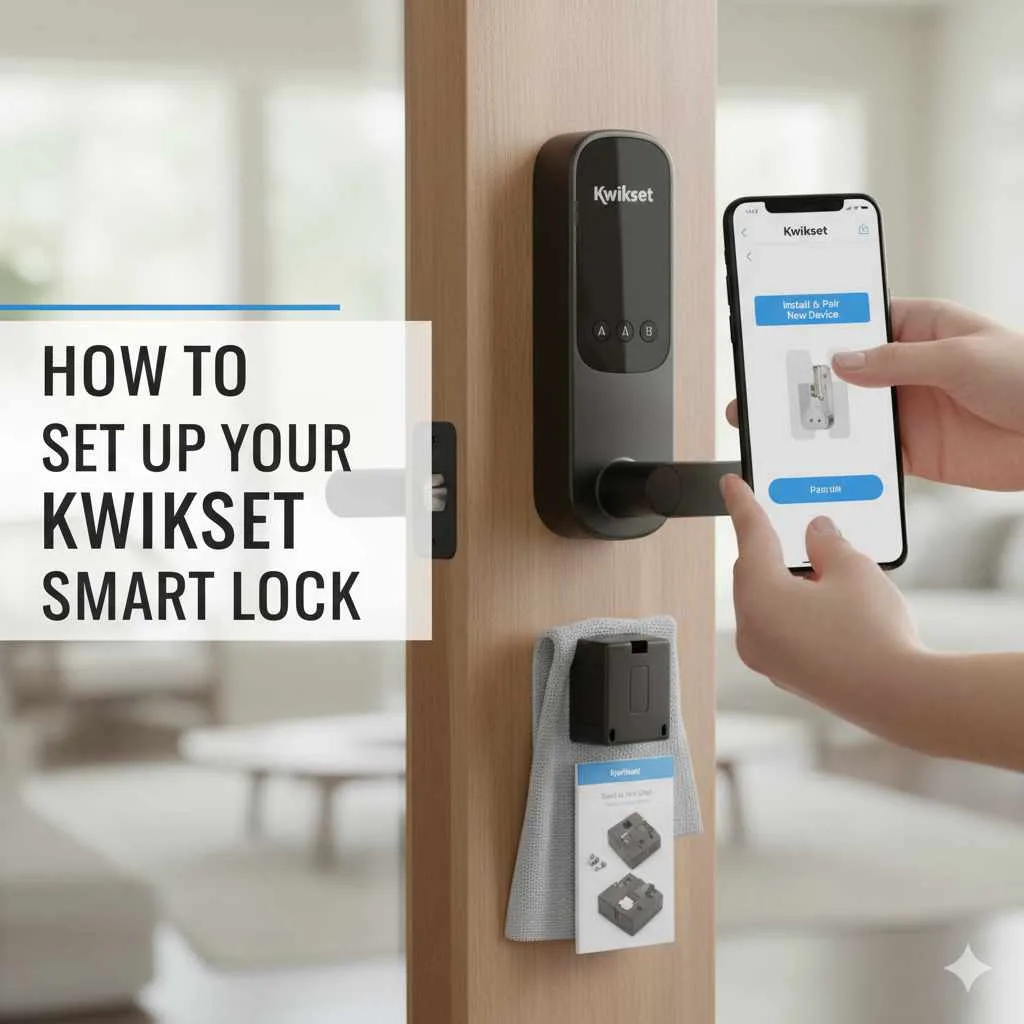
Quick Summary: Setting up your Kwikset smart lock is a straightforward process. This guide provides simple, step-by-step instructions to help you easily install and configure your new smart lock for enhanced home security and convenience, ensuring a seamless smart home experience.
Welcome to the wonderful world of smart home technology! Upgrading your home with a smart lock like Kwikset can feel like a big step, but it’s simpler than you might think. These locks offer fantastic security and convenience, letting you ditch the keys and control access from your smartphone. If you’ve been feeling a little hesitant about DIY installations, don’t worry! I’m here to guide you through every step, making the process feel easy and rewarding. We’ll go from unboxing to a fully functional smart lock, ensuring you feel confident and in control. Let’s get your door smarter and more secure, together!
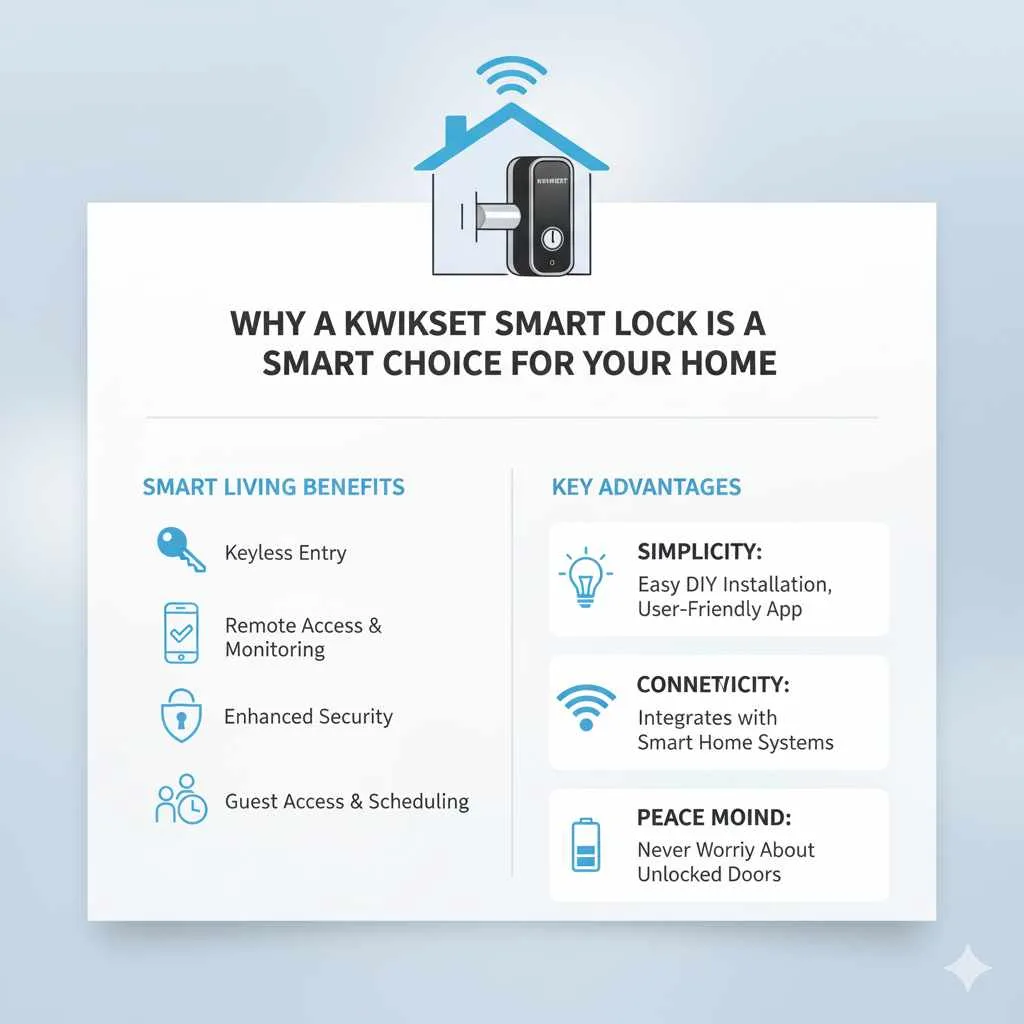
Why a Kwikset Smart Lock is a Smart Choice for Your Home
Choosing a Kwikset smart lock is a brilliant move for any homeowner looking to blend security with modern convenience. These devices aren’t just about keeping your home safe; they’re about simplifying your life. Imagine never having to fumble for keys in the dark or worry if you locked the door after leaving. Kwikset offers a range of models, each designed with user-friendliness and robust security in mind. They integrate seamlessly with popular smart home systems, allowing for a more connected and automated living experience.
The benefits extend beyond mere keyless entry. Many Kwikset smart locks allow you to grant temporary access to guests or service providers, track who enters and when, and even receive alerts directly to your phone. This level of control and peace of mind is invaluable. Plus, most models are designed for easy installation, meaning you can enjoy these advanced features without needing a professional.
Before You Begin: What You’ll Need
Getting ready for your Kwikset smart lock installation is like preparing for any exciting DIY project – a little planning goes a long way! Before you dive in, take a moment to gather everything you’ll need. This ensures a smooth and stress-free setup process. You want to have all your tools and information at hand so you can focus on the installation itself.
Here’s a checklist of what will help you get the job done:
- Your Kwikset Smart Lock: Of course! Make sure it’s the right model for your door.
- Screwdriver Set: You’ll likely need a Phillips head screwdriver. Some models might require a flathead as well.
- Measuring Tape: To ensure precise alignment, especially if you’re replacing an old lock.
- Your Smartphone: Essential for downloading the Kwikset app and managing your lock.
- Wi-Fi Network Information: You’ll need your Wi-Fi network name (SSID) and password to connect your lock.
- Door Specifications: It’s helpful to know your door’s thickness and backset measurement (the distance from the edge of the door to the center of the bore hole). Kwikset locks typically fit standard doors, but it’s good to confirm. You can find resources on measuring your door on sites like The Home Depot.
- The Kwikset App: Download the appropriate Kwikset app for your lock model (e.g., Kwikset App, Kevo app, Weiser app depending on your region and product).
- Patience and Enthusiasm: You’re upgrading your home security – that’s pretty exciting!
Step-by-Step Guide: How to Setup Kwikset Smart Lock
Now for the fun part – installing your Kwikset smart lock! We’ll break this down into manageable steps. Remember to read your specific Kwikset model’s manual as well, as there can be slight variations. Follow along, and you’ll have your new smart lock up and running in no time.
Step 1: Remove Your Old Deadbolt
First things first, let’s get rid of the old. If you’re replacing an existing deadbolt, remove it completely. You’ll typically find two screws on the interior side of the door. Unscrew these, and the deadbolt should come apart. You might need to gently pull the two pieces away from the door. Ensure the deadbolt itself is retracted, and then slide it out of the door edge.
Step 2: Install the New Deadbolt Latch and Door Bolts
Your new Kwikset lock comes with a new latch that fits into the edge of your door. Insert this latch into the hole on the edge of the door. Make sure the “UP” arrow on the latch (if present) points in the correct direction, usually towards the top of the door. Secure the latch plate with the screws provided. If your door has a separate strike plate on the frame, you might need to remove the old one and install the new one to ensure a perfect fit with the new deadbolt.
Step 3: Mount the Exterior Smart Lock Assembly
This is where your Kwikset smart lock starts to take shape! Take the exterior portion of the smart lock (the part with the keypad or touch screen). You’ll see a cable that needs to connect to the interior assembly. Feed this cable through the hole in your door, ensuring it goes under the latch mechanism. Carefully align the exterior assembly with the deadbolt and the door. There might be mounting screws that attach from the inside, coming through the exterior piece.
Step 4: Install the Interior Smart Lock Assembly
Now, attach the interior assembly to the exterior one. This part typically houses the batteries and the communication components. Align the interior assembly over the mounting screws coming from the exterior part. Secure it firmly with the provided screws. Make sure the cable from the exterior assembly is properly connected to the interior unit according to your Kwikset manual’s diagram. Ensure the deadbolt tailpiece slides smoothly through the interior mechanism for proper operation.
Step 5: Install the Batteries
Most Kwikset smart locks are powered by standard AA or 9V batteries. Open the battery compartment on the interior side of the lock. Insert the batteries, paying close attention to the polarity (+ and – signs). Using fresh, high-quality batteries will ensure optimal performance and battery life. You can find more information on battery types and considerations on resources like ENERGY STAR’s Battery Guide.
Step 6: Download the Kwikset App and Create an Account
It’s time to bring your lock to life digitally! Head to your smartphone’s app store (Apple App Store or Google Play Store) and search for the Kwikset app or the app associated with your specific smart lock model. Download and install it. Once installed, open the app and follow the prompts to create a new account. This usually involves providing an email address and creating a password.
Step 7: Connect Your Smart Lock to the App
This is the “smart” part! Within the Kwikset app, you’ll find an option to add a new device or a new lock. Follow the app’s instructions carefully. This typically involves putting your smart lock into pairing mode (often by pressing a button on the interior assembly) and then letting the app discover and connect to it. You will likely be prompted to enter your Wi-Fi network name and password so the lock can connect to your home network.
Step 8: Set Up Your User Codes
Once your lock is connected, you can start customizing it. The app or your lock’s manual will guide you through setting up primary user codes. These are the codes you’ll use for everyday entry. You can usually set a master code for programming and management, and then create individual codes for family members, friends, or contractors. Kwikset often provides guidelines for creating strong, secure codes.
Tip: Avoid using easily guessable codes such as birthdays, simple sequences (1234), or repeating numbers (1111).
Step 9: Test Your Smart Lock
Before you close everything up, it’s crucial to test your new smart lock thoroughly. From the outside, try entering your new user codes to ensure they unlock the door. Test the lock mechanism to ensure it engages and disengages smoothly. Use the Kwikset app to lock and unlock the door remotely. Also, test the auto-lock feature if your model has one—this locks the door automatically after a set period. A successful test is the ultimate confidence booster!
Understanding Your Kwikset Smart Lock Features
Kwikset smart locks are packed with features designed to make your life easier and your home more secure. Understanding these features can help you maximize your new lock’s potential. From advanced security protocols to convenient access methods, there’s a lot to explore.
Key Features to Explore:
- Keyless Entry: The core benefit, allowing entry via keypad codes or app.
- Smartphone Control: Lock/unlock remotely, receive notifications, and manage access through the Kwikset app.
- Activity Logging: See who entered and when, providing an extra layer of security awareness.
- Guest Access: Create temporary or scheduled access codes for visitors, dog walkers, or cleaning services.
- Smart Home Integration: Many Kwikset locks connect with smart assistants like Amazon Alexa or Google Assistant, and security systems like Ring or ADT. Check your model’s compatibility.
- Tamper Alerts: Receive notifications if someone tries to forcefully access your lock.
- Low Battery Indicator: The lock and the app will notify you when batteries are running low.
Troubleshooting Common Kwikset Smart Lock Issues
Even with the best instructions, sometimes things don’t go perfectly. Don’t let a small hiccup derail your smart lock upgrade! Here are solutions to some common issues you might encounter during setup or initial use.
Here’s a table of common problems and their solutions:
| Problem | Possible Cause | Solution |
|---|---|---|
| Lock won’t install or deadbolt doesn’t extend/retract smoothly. | Latch alignment issues; door not prepped correctly. | Ensure the latch is inserted correctly with the bevel facing the right way. Check that the door bore holes are standard size. Verify the tailpiece of the deadbolt is properly seated in the interior mechanism. |
| Smart lock won’t connect to Wi-Fi. | Incorrect Wi-Fi password; weak Wi-Fi signal; incompatibility with 5GHz networks. | Double-check your Wi-Fi password. Ensure your router is within range and consider if your lock only supports 2.4GHz Wi-Fi networks. Restart your router and the lock. |
| App cannot find or connect to the lock. | Lock not in pairing mode; Bluetooth issues; app permissions. | Ensure the lock is in pairing mode as per the manual. Check that Bluetooth is enabled on your phone. Grant necessary permissions to the Kwikset app. Try restarting your phone. |
| User codes are not working. | Incorrect code entry; lock programming error; master code needed for changes. | Ensure you are entering the correct user code. Try reprogramming the user codes via the app or the lock’s programming sequence. If issues persist, reset the lock to factory settings and start fresh. |
| Lock is unresponsive or frozen. | Battery issue; software glitch. | Replace the batteries with fresh ones. Try removing and reinserting the batteries to reset the lock. If it’s a persistent issue, consult the manual for a factory reset procedure. |
Maintaining Your Kwikset Smart Lock for Longevity
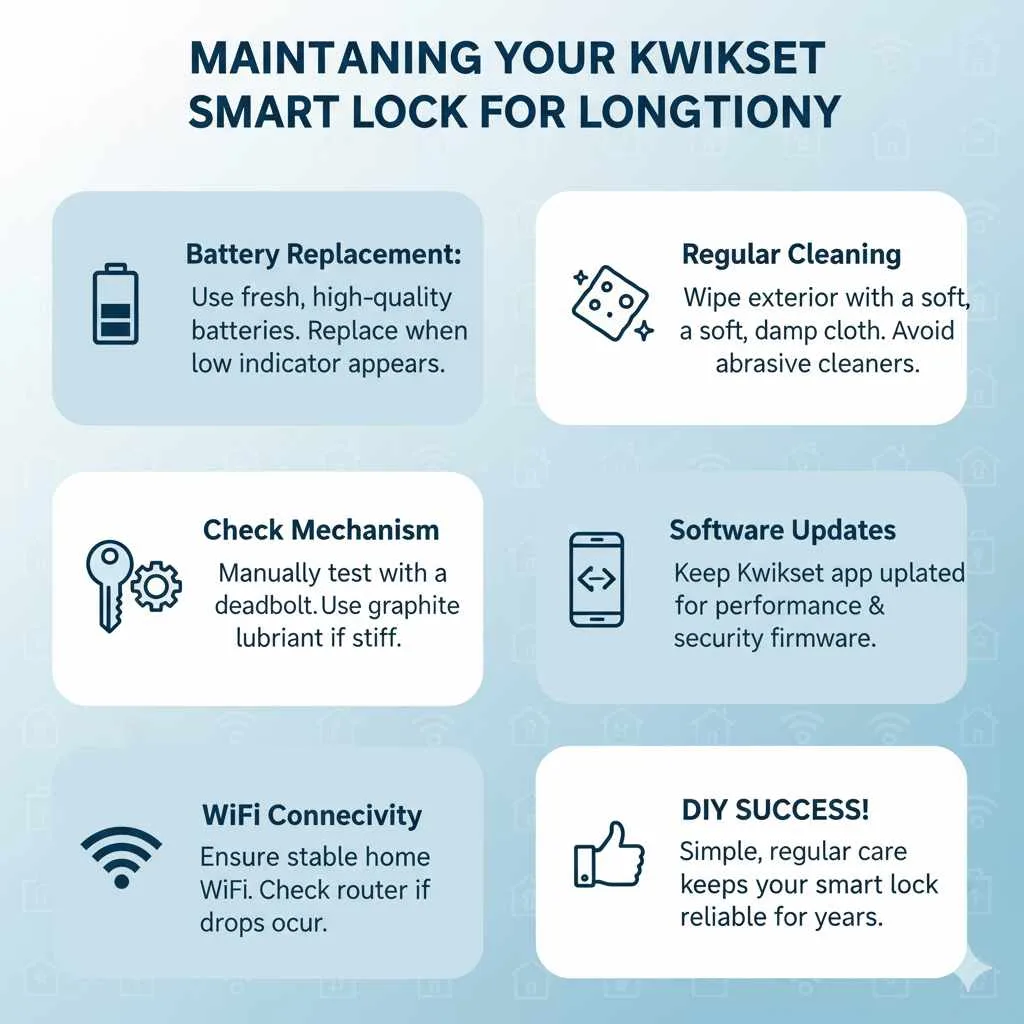
Once your Kwikset smart lock is up and running perfectly, you’ll want to keep it in great shape. Regular, simple maintenance ensures your smart lock continues to perform reliably and keeps your home secure for years to come. Think of it as a little TLC for your smart guardian!
- Battery Replacement: As mentioned, always use fresh, high-quality batteries and replace them when the low battery indicator appears. Don’t wait until it’s too late!
- Regular Cleaning: The exterior of the lock can be wiped down with a soft, damp cloth. Avoid abrasive cleaners that could damage the finish or the touchscreen/keypad.
- Check Mechanism: Periodically, manually test the deadbolt function to ensure it’s smooth. If you notice any stiffness, a tiny bit of graphite lubricant (not oil) applied to the keyway (if your model has one) or around the bolt mechanism can help.
- Software Updates: Keep your Kwikset app updated. Firmware updates for the lock are often pushed through the app and can improve performance, security, and add new features.
- Wi-Fi Connectivity: Ensure your home Wi-Fi is stable. If you experience frequent connectivity drops, it might be worth checking your router or your internet service.
Frequently Asked Questions About Kwikset Smart Locks
It’s natural to have questions, especially when trying something new. Here are some common queries beginner homeowners have about Kwikset smart locks, with straightforward answers to help you feel completely at ease.
Q1: Do Kwikset smart locks require Wi-Fi to work at all?
A1: Most Kwikset smart locks can function as a basic deadbolt even without Wi-Fi. You can still use a physical key (if your model has one) or your programmed entry codes locally. However, to use the smart features like remote locking/unlocking, app control, and notifications, a Wi-Fi connection is necessary.
Q2: How long do the batteries in a Kwikset smart lock typically last?
A2: Battery life varies depending on usage, battery quality, and environmental factors. However, a typical set of batteries can last anywhere from 6 months to over a year. Your Kwikset app will send you notifications when the battery level gets low.
Q3: Can I use my Kwikset smart lock without my smartphone?
A3: Absolutely! The beauty of a smart lock is that it offers multiple ways to get into your home. You can use your programmed keypad codes even if your phone is dead or lost. Some models also retain a traditional key backup.
Q4: Is a Kwikset smart lock safe from hackers?
A4: Kwikset incorporates security measures like encryption and secure communication protocols to protect against unauthorized access. For enhanced security, always use strong passwords for your Kwikset account and secure your home Wi-Fi network.
Q5: What happens if my Kwikset smart lock’s batteries die completely?
A5: If your model has a traditional key override, you can use that. Most Kwikset smart locks also have a battery jump-start feature. This usually involves connecting a 9V battery to specific terminals on the exterior of the lock to temporarily power it so you can enter your code or unlock it with the app.
Q6: Can I have multiple user codes for my Kwikset smart lock?
A6: Yes! Kwikset smart locks are designed to allow you to create multiple user codes. You can typically set up a master code for programming, then individual codes for family members, friends, or service providers, allowing you to track who enters and when.
Q7: Do I need any special tools to install a Kwikset smart lock?
A7: Generally, you’ll only need basic household tools like a Phillips head screwdriver. Some installations might benefit from a measuring tape or a drill if you need to make new holes, but most Kwikset smart locks are designed to replace standard deadbolts and require no special tools beyond what most homeowners already have.
Conclusion
Congratulations! You’ve successfully navigated the process of setting up your Kwikset smart lock. From removing your old lock to programming your first code and testing everything out, you’ve taken a significant step towards a more convenient and secure home. The peace of mind that comes with knowing you can control access, monitor activity, and enjoy keyless entry is truly wonderful.
Remember to keep up with the simple maintenance tips we discussed to ensure your smart lock continues to perform flawlessly. Explore the features within the Kwikset app further – you might discover even more ways it can simplify your life. Embracing smart home technology like this doesn’t have to be intimidating. With clear guidance and a little bit of DIY spirit, you’ve enhanced your living space and added a touch of modern magic. Enjoy the ease, security, and convenience your new Kwikset smart lock brings to your everyday life – you’ve earned it!