Does Tablo Work With Plex? Essential Guide
Tablo does not integrate with Plex directly, but a free tool called Tablo Exporter bridges the two by converting recordings to a format Plex can read. Skip that conversion step and Plex simply won’t see your Tablo recordings at all. This guide covers the exact setup, what hardware you need, and the tradeoffs of this approach.
What is Tablo, and Why Connect it to Plex?
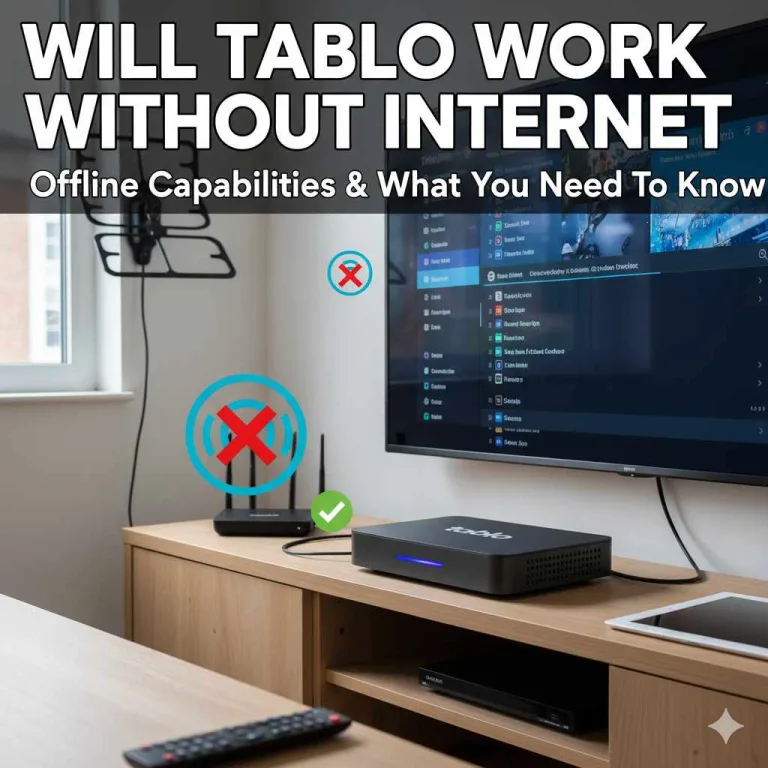
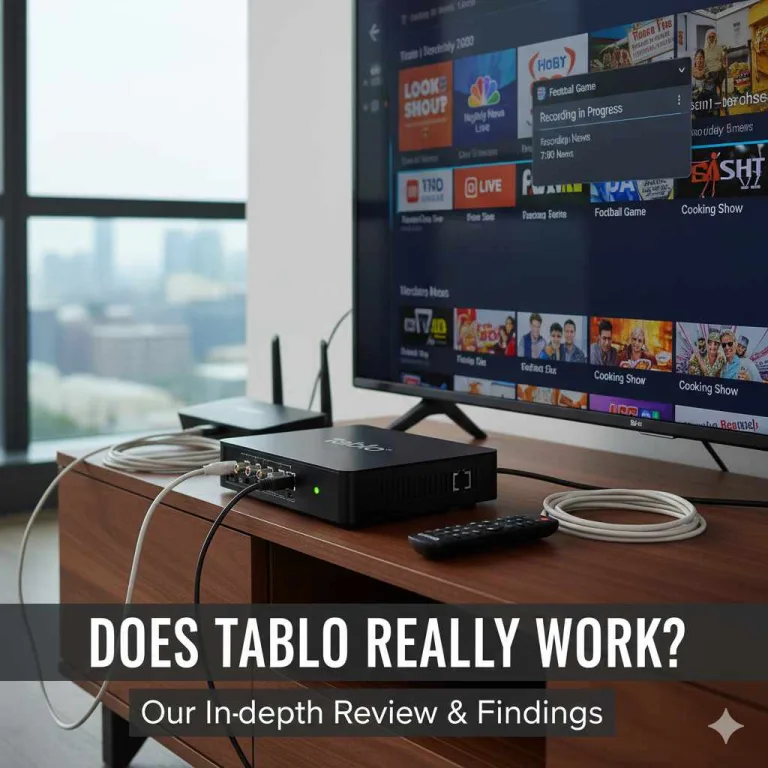
Think of Tablo as your personal, modern DVR for over-the-air (OTA) television. Unlike traditional cable boxes, Tablo connects to an antenna to pick up free TV channels broadcast in your area. You can then record these shows, pause live TV, and stream them to various devices in your home (and sometimes even when you’re away) using a Tablo app. It’s a budget-friendly way to get tons of entertainment without a monthly subscription fee.
Plex, on the other hand, is a popular media server software. It organizes all your digital media – movies, TV shows, music, and photos – and makes them easily accessible on almost any device you own. You can stream from your computer, phone, tablet, smart TV, or streaming stick. It’s like your own personal Netflix, but with your own content.
So, why would you want to connect them? When you link Tablo with Plex, you’re essentially adding your Tablo’s live and recorded OTA TV content to your existing Plex library. This means you can:
- Unified Viewing Experience: Access both your Plex media (downloaded movies, ripped DVDs) and your OTA TV recordings (from Tablo) all within the familiar Plex interface. No more switching between different apps!
- Access Your Recordings Anywhere: Just like your other Plex content, your Tablo recordings can be streamed to any device with the Plex app, whether you’re on your couch or on vacation.
- Leverage Plex’s Features: Enjoy Plex’s excellent interface, metadata fetching for your OTA recordings, and robust streaming capabilities for your free TV content.

Does Tablo Directly Integrate with Plex?
This is the million-dollar question! While Tablo itself doesn’t have a direct, built-in “send to Plex” button, there’s a very clever way to make it happen. You need a bit of help from a third-party tool that bridges the gap. The most popular and effective method involves using a piece of software that can convert the recordings saved by your Tablo into a format that Plex can easily read and manage.
Essentially, Tablo saves your recordings in a specific format (often MPEG-TS). Plex is designed to work best with other video formats like MP4. The process involves getting your recorded shows from Tablo into a format that Plex can understand and then placing them in a location where your Plex Media Server is scanning for new media.
The Essential Tool: Tablo Exporter
To make your Tablo recordings PLEX-compatible, most users turn to a fantastic community-developed tool called Tablo Exporter. This program is designed specifically to help Tablo users get their recordings into a format that can be easily imported into Plex or other media servers. It’s not an official Tablo or Plex product, but it’s widely used and trusted by the Tablo community.
Here’s a little more about what Tablo Exporter does:
- Converts Recordings: It takes your `.ts` (Transport Stream) files from Tablo and converts them into `.mp4` files, which Plex handles exceptionally well.
- Adds Metadata: It can also help add metadata (like show titles, episode numbers, descriptions, and artwork) to your recordings, making them look just like professionally acquired media within your Plex library.
- Automates the Process: Once set up, it can often automate the export and conversion process, saving you a lot of manual work.
You can typically find information and download links for Tablo Exporter on forums dedicated to Tablo or Plex, or through reliable tech blogs that cover home media setups. Always download software from trusted sources!
Step-by-Step: Connecting Tablo to Plex Using Tablo Exporter
Let’s get down to business! This guide assumes you already have a Tablo DVR set up and recording shows, and that you have a Plex Media Server running on a computer or NAS. We’ll focus on using Tablo Exporter to get those recordings into Plex.
Step 1: Set Up Tablo Exporter
First, you need to get Tablo Exporter installed and configured. This is often the most technical part, but don’t worry, we’ll break it down.
- Download Tablo Exporter: Search for “Tablo Exporter” on a search engine and find a reputable source to download the latest version. It’s usually available as a standalone application or a script.
- Install/Extract the Software: Follow the instructions provided with the download. This might involve running an installer or simply extracting files to a specific folder on your computer.
- Configure Tablo Exporter: This is crucial. You’ll need to tell Tablo Exporter:
- Your Tablo’s IP address (you can usually find this in your Tablo app settings or your router’s connected devices list).
- Your Tablo username and password (if applicable).
- The destination folder where you want the exported and converted `.mp4` files to be saved. This folder should ideally be one that your Plex Media Server is already scanning for TV shows.
- Any preferred conversion settings (e.g., quality, format). The default settings are usually a good starting point.
Tip: For detailed configuration, it’s best to refer to the specific documentation or readme file that comes with Tablo Exporter. It might require some basic command-line interaction depending on the version you download.
Step 2: Connect Tablo Exporter to Your Tablo
Once configured, you’ll run Tablo Exporter. It will connect to your Tablo device and list the recordings available. You typically select which recordings you want to export and convert.
The process can be automated to run on a schedule (e.g., daily) to catch new recordings. This is highly recommended so you don’t have to manually initiate the export every time.
Step 3: Set Up Your Plex Media Server
If you haven’t already, you need to set up a “TV Shows” library in Plex.
- Open Plex Web App: Go to your Plex server’s web interface (usually `http://[your-server-ip]:32400/web`).
- Add Library: Click the “+” sign next to your existing libraries, select “TV Shows,” and give it a name (e.g., “OTA TV Recordings”).
- Add Folders: This is where you tell Plex where to look for your media. Browse to and select the specific folder where Tablo Exporter is saving your converted `.mp4` files (the destination folder you set up in Step 1).
- Scan Library Files: Once the folder is added, Plex will automatically scan it for new media.
Important: For Plex to correctly identify your OTA recordings as TV shows, it’s best to organize them in a structured way. Tablo Exporter can often help with this by naming files and folders appropriately (e.g., `Show Name/Season X/Show Name – SxxExx – Episode Title.mp4`). Check Tablo Exporter’s settings for naming conventions that work well with Plex.
Step 4: Let Tablo Exporter Work Its Magic
After configuring Tablo Exporter and your Plex library, you just need to let the software do its thing. If you set up a schedule, it will automatically export and convert new recordings. Plex will then scan the designated folder and add these new shows to your library.
You might need to perform an initial “Scan Library Files” in Plex after setting up the folder to ensure everything is picked up. Subsequent scans can be set to happen automatically, or manually triggered if needed.
Step 5: Enjoy Your Unified Media Library!
Now, when you open your Plex app on any device, you should see your OTA TV recordings appear within your “TV Shows” library, alongside any other TV shows you might have in Plex. You can browse them, see episodes, watch them, and even track your viewing history, all within Plex!
Tablo Exporter vs. Other Methods
While Tablo Exporter is the most common and recommended method, it’s worth mentioning that other approaches might exist or have existed. However, they often become outdated or are more complex.
For example, some users might have explored manually copying the `.ts` files from Tablo and then using video conversion software like HandBrake or FFmpeg. While technically possible, this is a much more labor-intensive process: you have to manually locate, copy, convert, and rename each recording. Tablo Exporter automates the most tedious parts, making it the clear winner for ease of use and efficiency.
Here’s a quick comparison:
| Feature | Tablo Exporter | Manual Conversion |
|---|---|---|
| Ease of Use | High (once configured) | Low (requires manual steps for each recording) |
| Automation | Yes (scheduling, batch export) | No |
| File Conversion (.ts to .mp4) | Yes | Yes (requires separate software) |
| Metadata Handling | Good (can add basic metadata) | Manual or complex scripting needed |
| Time Investment | Low (after initial setup) | High |
| Community Support | Strong (forums, guides) | Varies depending on conversion software |
Best Pick For A Tablo And Plex Setup
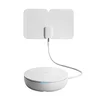
Tablo TV 4th Gen 4-Tuner OTA DVR with Antenna – $159.95
This guide’s “What You’ll Need” list starts with a Tablo DVR and an antenna — this bundle covers both in one order.
- Best for: Getting started with the exact Tablo-to-Plex setup this guide walks through
- Why we picked it: 4 tuners record multiple channels at once, more headroom than the 2-tuner model
- Main drawback: Costs more upfront than buying the antenna separately if you already own one
Compare more options
 Option 1 Tablo TV 4th Gen 2-Tuner OTA DVR – $99.95
|
 Option 2 Amplified Indoor HDTV Antenna with 16.5 ft Cable – $23.99
|
 Option 3 Seagate 2TB Portable External Hard Drive – $149.99
|
As an Amazon Associate we earn from qualifying purchases.
What You’ll Need
To get Tablo working with Plex, you’ll want to have the following ready:
- A Tablo DVR: Any model will work, as long as it’s recording OTA TV.
- An Antenna: To actually receive the free TV channels. Check out resources like FCC DTV Reception Maps to see what channels are available in your area.
- A Plex Media Server: Running on a computer (Windows, macOS, Linux) or a Network Attached Storage (NAS) device.
- Tablo Exporter Software: The essential bridge tool.
- Sufficient Storage Space: For your converted `.mp4` files. These can take up a fair amount of space, depending on recording quality and duration.
- Basic Computer Know-How: Familiarity with file folders, IP addresses, and potentially running scripts or command-line applications (depending on the Tablo Exporter version).
Pros and Cons of This Setup
Like any tech solution, having Tablo recordings in Plex has its advantages and a few things to keep in mind.
Pros:
- Unified Interface: All your media, including free OTA TV, in one place.
- Remote Access: Stream your Tablo recordings from anywhere via Plex.
- No Extra Subscriptions: Leverages your existing Tablo and antenna for free content.
- Plex Features: Benefits from Plex’s slick interface, playback options, and metadata.
- Cost-Effective: A great way to expand your media library without buying more services.
Cons:
- Requires Third-Party Software: Tablo Exporter is not officially supported by Tablo or Plex, meaning updates or changes to either platform could potentially break compatibility.
- Setup Can Be Technical: Initial configuration of Tablo Exporter might be challenging for absolute beginners.
- Storage Needs: Converting and storing many hours of HD TV recordings requires significant hard drive space.
- Metadata Accuracy: While good, metadata might not always be perfect for every OTA recording.
- Not Live TV (within Plex): While you can access recordings, live TV streams from Tablo usually need their own app. The integration is primarily for recorded content.

Frequently Asked Questions (FAQ)
Q1: Can I watch live TV from my Tablo through Plex?
A: Generally, no. The integration with Plex primarily focuses on accessing your recorded shows. Live TV streaming is best done through the official Tablo app or browser interface.
Q2: Is Tablo Exporter safe to download and use?
A: Tablo Exporter is a community-developed tool. While widely used and trusted, always download it from a reputable source. Be cautious of sites that seem suspicious. It’s always a good idea to have up-to-date antivirus software.
Q3: How much storage space will I need for my recordings?
A: This varies greatly. A one-hour HD recording can be anywhere from 1GB to 5GB or more, depending on the Tablo’s recording quality settings and the TV broadcast. You’ll need enough space for all your planned recordings and their converted versions.
Q4: What happens if Tablo or Plex updates? Will my setup break?
A: Major updates to Tablo or Plex could affect compatibility with Tablo Exporter. The developers and community often work to update Tablo Exporter to keep pace. It’s a good practice to keep an eye on the forums or download page for any news regarding updates.
Q5: Do I need to keep my Tablo recordings on the Tablo device?
A: No. Once Tablo Exporter has successfully exported and converted a recording, you can usually manage the original file on the Tablo device if needed, though many users choose to clear space on their Tablo’s drive after export.
Q6: Can I use Tablo Exporter to record shows remotely?
A: Tablo Exporter itself is a tool for exporting already recorded shows. The recording process is handled by your Tablo DVR. You can schedule recordings on your Tablo remotely via its app, and then Tablo Exporter can pick them up once they are finished.
Q7: What is the best way to organize my exported recordings for Plex?
A: Plex prefers a structured naming convention for TV shows. A common format is `Show Name/Season X/Show Name – sXXeYY – Episode Title.mp4`. Many versions of Tablo Exporter can be configured to name files this way automatically, which greatly helps Plex identify and organize your content correctly.
Conclusion
Bringing your free over-the-air TV channels into your Plex server setup is a rewarding way to consolidate your entertainment. While there isn’t a direct button to make Tablo and Plex work together, the community-driven tool, Tablo Exporter, is an incredibly effective solution. It bridges the gap by converting your Tablo recordings into a format that Plex can easily understand and manage, allowing you to access all your media through one familiar interface.
The process might seem a little daunting at first, especially if you’re new to media servers or conversion tools. However, by following the steps outlined here, you can successfully integrate your Tablo DVR into your Plex ecosystem. Just remember to download Tablo Exporter from a trusted source, configure it carefully, and set up your Plex library to scan the correct folder. The result is a more unified, convenient, and powerful home entertainment experience. Happy streaming!
Products related to this article
Sponsored / affiliate links. As an Amazon Associate I earn from qualifying purchases. I may earn additional commission from eligible campaigns.