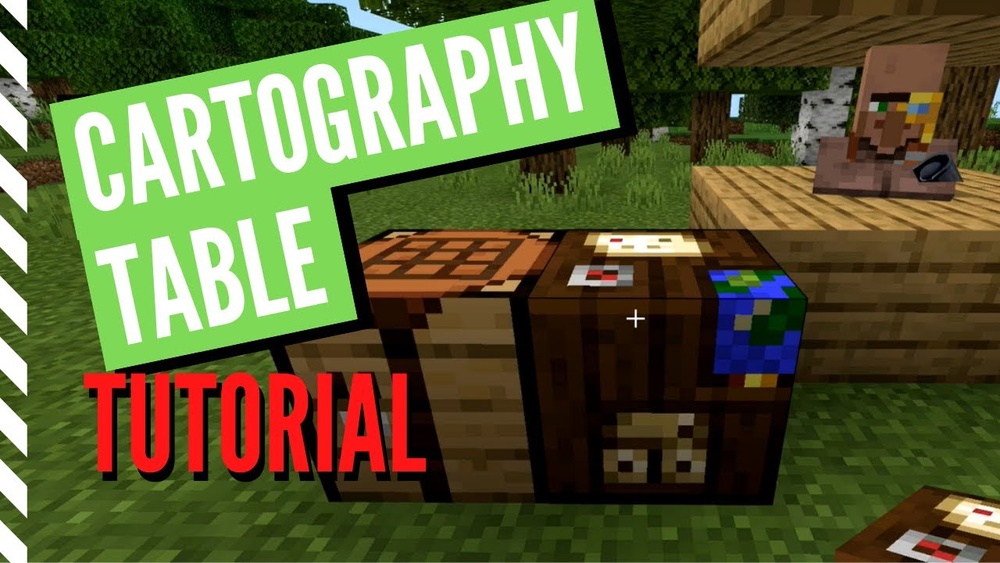
How Does A Cartography Table Work In Minecraft
Minecraft’s cartography table is a deceptively simple block that revolutionizes the way players interact with maps and navigation. Whether you’re a survival expert mapping vast worlds or a casual builder creating intricate cities, understanding the mechanics and strategic uses of the cartography table can dramatically improve your gameplay. Yet, many players only scratch the surface of what this block offers, missing out on powerful features that streamline exploration, trading, and multiplayer collaboration.
As someone who’s spent hundreds of hours experimenting with mapping tools in Minecraft, I’ve seen firsthand how mastering the cartography table transforms in-game travel and resource management. This guide will break down every aspect of how a cartography table works, from crafting recipes and map upgrades to advanced strategies for both solo and multiplayer worlds.
You’ll also discover real-world examples, comparison tables, and actionable tips that ensure you never get lost, or lose your progress, again.
Key Takeaways
- The cartography table streamlines map creation, expansion, cloning, and locking in Minecraft, making world navigation far more efficient.
- It offers unique advantages over crafting tables for map management, including resource savings and advanced map manipulation.
- Using the cartography table is essential for villager trading, large-scale multiplayer projects, and survival base planning.
- Understanding its mechanics allows players to avoid common pitfalls, such as map overwriting and data loss.
- Combining the table with other tools and in-game systems maximizes exploration and collaboration potential.
Credit: www.youtube.com
What Is A Cartography Table In Minecraft?
The cartography table is a utility block added to Minecraft in version 1.14, designed specifically for map-related tasks. Its primary purpose is to simplify and enhance the way players handle maps, allowing for map cloning, scaling, and locking with greater ease and fewer resources than traditional crafting methods.
Overview And History
- Introduced in the Village & Pillage update (2019), the cartography table was part of a broader effort to make villages and professions more interactive.
- It became the workstation for the cartographer villager profession, unlocking new trading options and economic opportunities.
- Before the cartography table, players relied solely on the crafting table for map manipulation, which was more resource-intensive and less user-friendly.
Key Functions
The cartography table allows players to:
- Expand maps (increase their scale)
- Clone maps (create identical copies)
- Lock maps (prevent further edits)
- Rename maps (on Bedrock Edition only)
Crafting Recipe
To craft a cartography table, you need:
- 2 Paper
- 4 Wooden planks (any type)
Place the paper in the top two slots and wooden planks in the bottom four slots of a crafting grid.
Usage In Villager Professions
- Placing a cartography table in a village allows an unemployed villager to become a cartographer.
- Cartographers offer trades for maps, banners, and explorer maps, providing access to rare structures like woodland mansions and ocean monuments.
How The Cartography Table Differs From The Crafting Table
Although both the cartography table and crafting table can manipulate maps, the cartography table offers significant advantages in efficiency, cost, and usability.
Comparison Table: Cartography Table Vs. Crafting Table
| Feature | Cartography Table | Crafting Table |
|---|---|---|
| Map Expansion | One paper per scale increase | Eight paper per scale increase |
| Map Cloning | Simple, instant process | More steps, higher resource cost |
| Map Locking | Possible with glass pane | Not available |
| Villager Integration | Yes (cartographer workstation) | No |
| Ease of Use | User-friendly interface | Generalized interface |
Resource Savings
- Expanding a map with the cartography table uses 1 paper per scale increase versus 8 paper on a crafting table.
- Map locking and cloning are more intuitive, minimizing accidental errors and resource waste.
Interface And Workflow
- The cartography table’s simple GUI (graphical user interface) reduces mistakes and accelerates map management.
- Players can see the result of their actions before finalizing, unlike the crafting table.
Pro Tip:
Always use the cartography table for map-related tasks. Not only does it save resources, but it also reduces the risk of overwriting maps or making irreversible changes.

Credit: www.minecraft.net
Core Functions: Expanding, Cloning, And Locking Maps
Mastering the cartography table’s primary functions is key to effective map management in Minecraft.
Expanding Maps
Expanding a map increases its coverage area, revealing more terrain at the cost of detail.
- How to Expand:
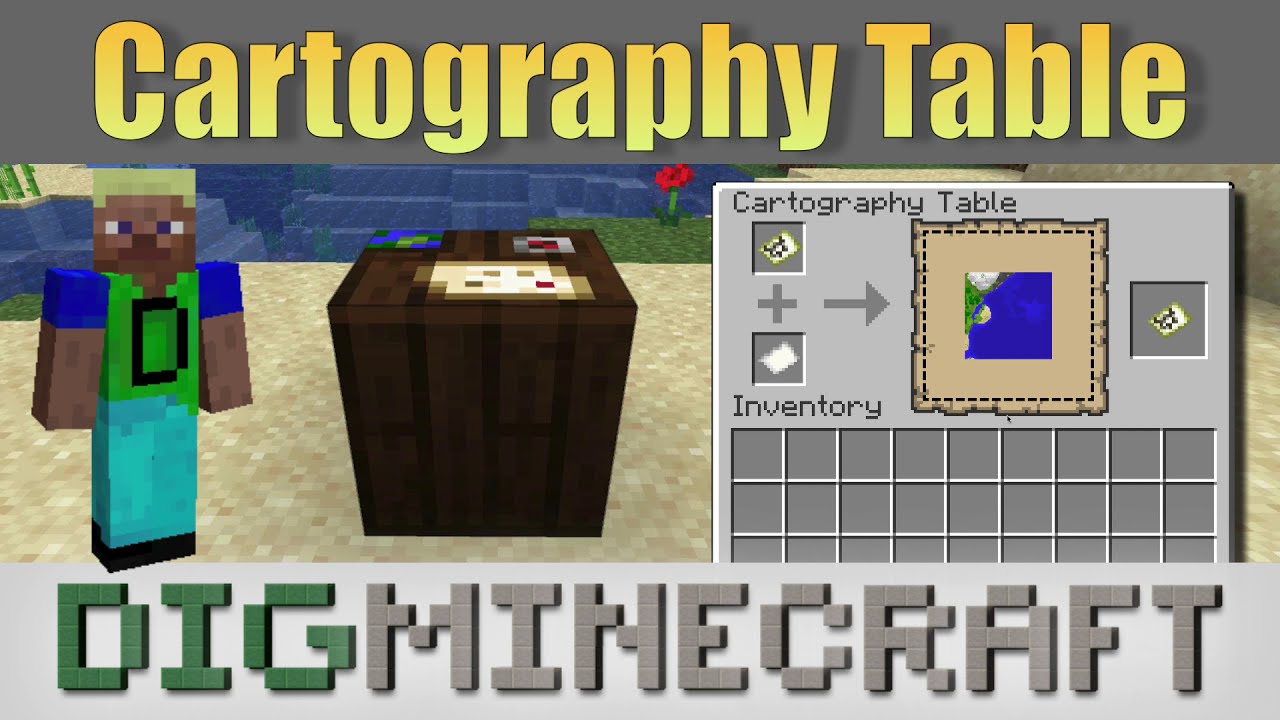
- Place your existing map in the left slot.
- Add paper to the right slot.
- The output shows a map with a larger scale.
- Take the new map to complete the process.
- Each expansion increases the map’s scale by one level, up to a maximum of four.
Map Scale Levels
| Scale Level | Covers Area (Blocks) | How to Achieve |
|---|---|---|
| Level 0 | 128 x 128 | Base map (no expansion) |
| Level 1 | 256 x 256 | Expand once |
| Level 2 | 512 x 512 | Expand twice |
| Level 3 | 1024 x 1024 | Expand three times |
| Level 4 | 2048 x 2048 | Expand four times |
- Larger maps are ideal for exploring biomes or documenting large builds, but display less detail.
Cloning Maps
Cloning creates an exact duplicate of an existing map, useful for sharing with other players or creating backup copies.
- How to Clone:
- Place the map you want to clone in the left slot.
- Add a blank map or empty map to the right slot.
- Retrieve the cloned map from the output slot.
- Both maps will update simultaneously as you explore new areas with either one.
Locking Maps
Locking a map “freezes” its data, preventing any further updates or changes. This is crucial for preserving a snapshot of a location or preventing accidental overwrites.
- How to Lock:
- Place the map in the left slot.
- Add a glass pane to the right slot.
- Take the output map, now marked as “locked.”
- Locked maps display a padlock icon and will not update, regardless of changes in the world.
Example: Multiplayer Base Coordination
In a multiplayer survival world, my team used cloned and locked maps to coordinate base expansion and keep records of the original landscape. Each member had a copy of the same map, and a locked version was displayed in a central hall, helping everyone stay oriented during massive construction projects.

Credit: www.ign.com
Advanced Strategies For Cartography Table Usage
Beyond basic map management, the cartography table enables sophisticated strategies for exploration, trading, and world-building.
Strategic Map Networks
Creating a map wall or network of maps allows players to document entire regions or even the whole world.
- Start with a level 0 map for detail.
- Clone and expand as needed, filling in each section.
- Arrange completed maps on item frames to create a large-scale visual reference.
This technique is invaluable for server admins and large build teams.
Trading With Cartographer Villagers
Cartographers are among the most valuable villagers, offering trades for explorer maps that lead to woodland mansions and ocean monuments.
- Cartography tables are required to assign the cartographer profession.
- Trading paper, glass panes, and maps can yield emeralds and rare maps.
Map Customization And Renaming
In Bedrock Edition, players can rename maps at a cartography table, making it easier to organize large map collections.
- Example: Rename maps to “Village Center,” “Ocean Monument,” etc., for clarity.
Integration With Banners
Banners can be placed and named in the world, and then marked on maps by right-clicking with a map in hand. This allows for advanced waypoint systems, especially in multiplayer worlds.
- Use the cartography table to manage and clone maps with banner markers for team navigation.
Real-world Examples And Case Studies
The best way to understand the cartography table’s power is to see it in action. Here are three real-world examples from diverse gameplay scenarios.
Example 1: Survival Exploration
A solo survival player uses the cartography table to create a series of level 3 maps covering their journey from spawn to a remote jungle temple. By expanding and locking maps at key milestones, they ensure they never get lost, even after dying and respawning.
Example 2: Multiplayer Mega-project
A creative server team plans a sprawling city. Each district leader manages their area using cloned maps, updating progress and sharing changes with others. The central admin uses a locked “master map” to preserve the original landscape, highlighting the evolution of the project over time.
Example 3: Villager Trading Economy
On a survival server, a player sets up a cartographer trading hall. They mass-produce paper and glass panes to trade for explorer maps, then sell these rare maps to other players. The cartography table streamlines map expansion and cloning, maximizing profits and driving the server’s economy.
Common Pitfalls And How To Avoid Them
Even experienced players can make mistakes with map management. Here’s how to avoid the most frequent errors.
Accidental Map Overwriting
- Always clone important maps before making changes.
- Use locked maps for critical builds or records.
Inefficient Resource Use
- Don’t expand maps on the crafting table, use the cartography table to save paper.
- Keep extra blank maps and glass panes in your inventory for emergencies.
Losing Map Data
- Store backup copies of maps in chests or ender chests.
- Display key maps on item frames as a visual reference and backup.
Pro Tip:
When working on a large multiplayer server, schedule regular map updates and backups. Assign one player to manage the cartography table and maintain the master map wall.
Cartography Table And Multiplayer Collaboration
The cartography table’s true potential shines in multiplayer settings, where coordination and communication are critical.
Coordinating Exploration
- Clone maps for each player before setting out on an expedition.
- Mark important sites (bases, villages, strongholds) with banners and share updated maps.
Building And Territory Planning
- Use locked maps to preserve records of the landscape before major builds.
- Display map walls in communal areas for easy reference and planning.
Trading And Map Sharing
- Set up a “map library” where players can check out or copy maps as needed.
- Use renamed maps to organize large collections and prevent confusion.
Example: Server Event Mapping
During a server-wide scavenger hunt, organizers used a cartography table to create special event maps, marking clues and checkpoints with banners. Players received cloned maps to participate, enhancing the event’s immersion and fairness.
Cartography Table Integration With Other Minecraft Systems
The cartography table doesn’t exist in isolation, it interacts with other blocks, mechanics, and systems for even greater utility.
Integration With Item Frames
- Place maps in item frames to create map walls or navigation boards.
- Update or clone maps as the world changes to keep displays current.
Redstone And Automation
While the cartography table cannot be automated directly, creative players use redstone circuits to manage map storage and distribution systems.
Combining With Locator Maps
In Bedrock Edition, locator maps display player icons. Use the cartography table to clone and expand locator maps for multiplayer navigation.
Example: Automated Map Archive
Some players build redstone-powered map vaults, storing locked maps in dispensers or droppers for quick access during server events or emergencies.
Comparison: Cartography Table Vs. Other Utility Blocks
Understanding where the cartography table stands among Minecraft’s utility blocks can help players optimize their setups.
| Block | Main Function | Special Feature | Best Use Case |
|---|---|---|---|
| Cartography Table | Map management | Map expansion, cloning, locking | Navigation, multiplayer planning |
| Crafting Table | General crafting | All recipes | Everyday crafting |
| Smithing Table | Gear upgrading | Netherite upgrades | End-game gear |
| Fletching Table | Villager job site | Fletcher profession | Arrow and bow trading |
| Composter | Fertilizer creation | Bonemeal production | Farming automation |
- The cartography table’s specialized interface makes it the best choice for anything map-related, while other blocks serve more general or niche roles.
Frequently Asked Questions
What Happens If I Lose My Map After Expanding It With A Cartography Table?
If you lose your expanded map, any new areas you explored will not be recoverable unless you have a cloned copy. To avoid this, always clone maps before venturing far or making significant changes. If you only have an old version, you’ll need to retrace your steps and re-explore the lost territory to update a new map.
Can I Use The Cartography Table To Rename Maps In Java Edition?
No, as of Minecraft 1.20, renaming maps via the cartography table is only available in Bedrock Edition. In Java Edition, you must use an anvil to rename maps. This difference can affect organization if you play across different editions.
Are There Any Limits To How Many Times I Can Clone Or Expand A Map?
You can clone a map unlimited times as long as you have blank or empty maps available. However, you can only expand a map up to four times (from level 0 to level 4). Each expansion increases the area covered but reduces the level of detail visible.
Does The Cartography Table Work With Custom Or Modded Maps?
The cartography table is designed for vanilla Minecraft maps. Most mods that add custom maps or world features may not fully integrate with the cartography table, though some modpacks offer compatibility patches. Always check mod documentation for specifics, or consult the Minecraft Wiki for updates.
How Do I Make The Most Efficient Use Of Resources When Creating Maps?
For maximum efficiency:
- Use the cartography table for all map expansions (one paper per level).
- Clone key maps before exploring new regions or sharing with others.
- Lock completed maps to prevent accidental overwrites.
- Organize maps with clear names and storage systems, especially in multiplayer worlds.
Additional Resources And Internal Links
For more on Minecraft’s crafting and preservation systems, consider reading:
- Is Pickling Salt the Same as Canning Salt?
- Choosing the right canning jar makes preserving food easier
- Freeze-drying vs canning: Which is better for long-term food storage?
- Canning vs bottling: which method is best for preserving food?
For official documentation and the latest updates, refer to the Minecraft Wiki or explore community guides on Minecraft.net.
Mastering the cartography table elevates your Minecraft experience, turning navigation and exploration into organized, collaborative, and creative endeavors. Whether you’re mapping hidden temples, planning server events, or just trying to find your way home, understanding this powerful tool ensures you’ll always stay one step ahead in your blocky adventures.
Products related to this article
Sponsored / affiliate links. As an Amazon Associate I earn from qualifying purchases. I may earn additional commission from eligible campaigns.