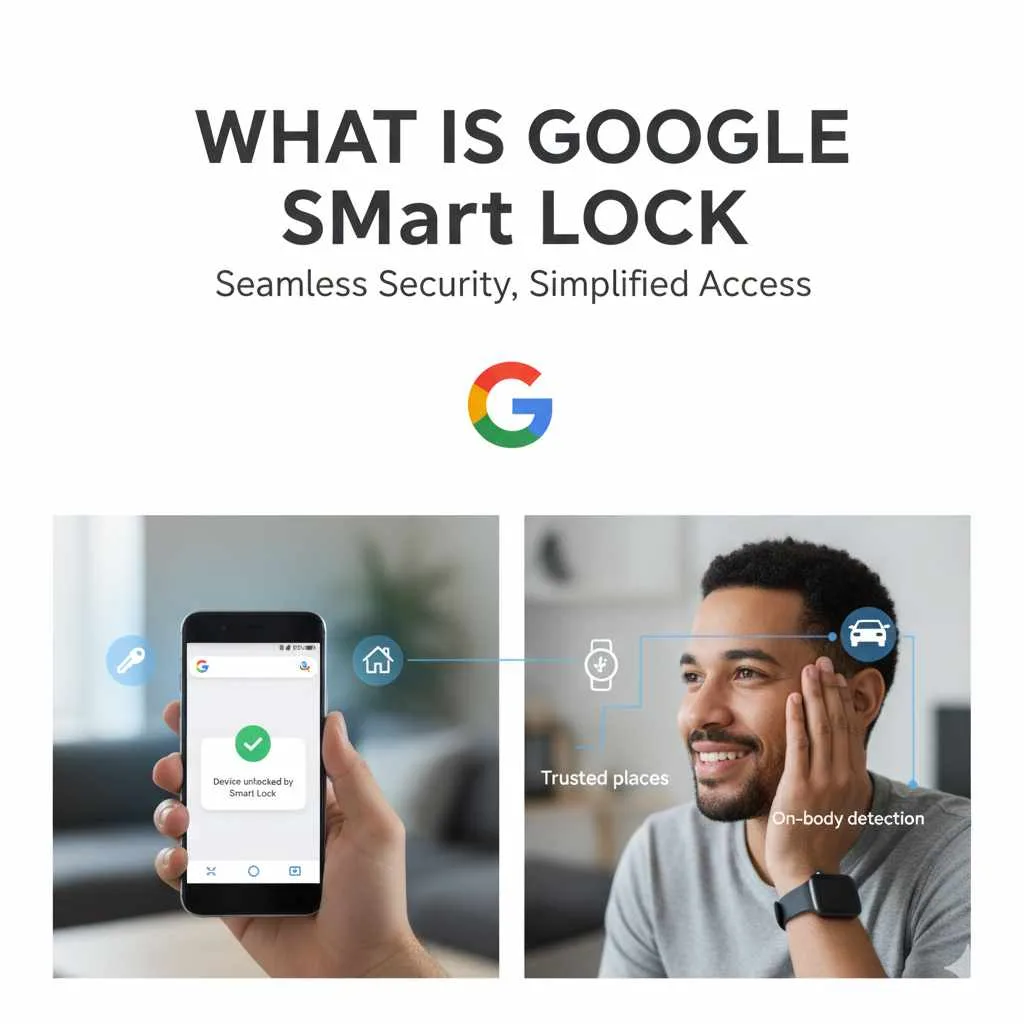
Google Smart Lock is a built-in feature across your devices that automatically saves and fills in your passwords and app logins, making it easier and more secure to sign in to websites and apps without remembering every detail.
Navigating the digital world often feels like a constant game of remembering countless passwords. Forgetting one can be a real headache, right? Whether it’s for your favorite online stores, social media, or essential work apps, keeping track of them all is tough. This can lead to using simpler, less secure passwords or spending frustrating minutes trying to reset them. Wouldn’t it be wonderful if there was a simple, safe way to manage all those logins without the stress? The good news is, there is! Google Smart Lock is a smart solution designed to make your online life smoother and more secure.
In this guide, we’ll walk you through exactly what Google Smart Lock is, how it works, and how you can use it to your advantage. Get ready to say goodbye to password fatigue and hello to effortless access!
What Is Google Smart Lock?
Google Smart Lock is essentially your personal digital assistant for passwords, built right into your Google account and available across your devices – your phone, tablet, and computer. Its primary job is to securely store your login details for websites and apps. When you sign in using your Google account, Smart Lock can help you save your username and password. The next time you visit that site or open that app, it can automatically fill in your credentials for you. Think of it as a secure digital vault for your most used online information.
It’s designed to simplify your online experience by eliminating the need to constantly type in passwords or go through the ‘forgot password’ process. This not only saves you time but can also encourage the use of stronger, more unique passwords for each service, boosting your overall online security.
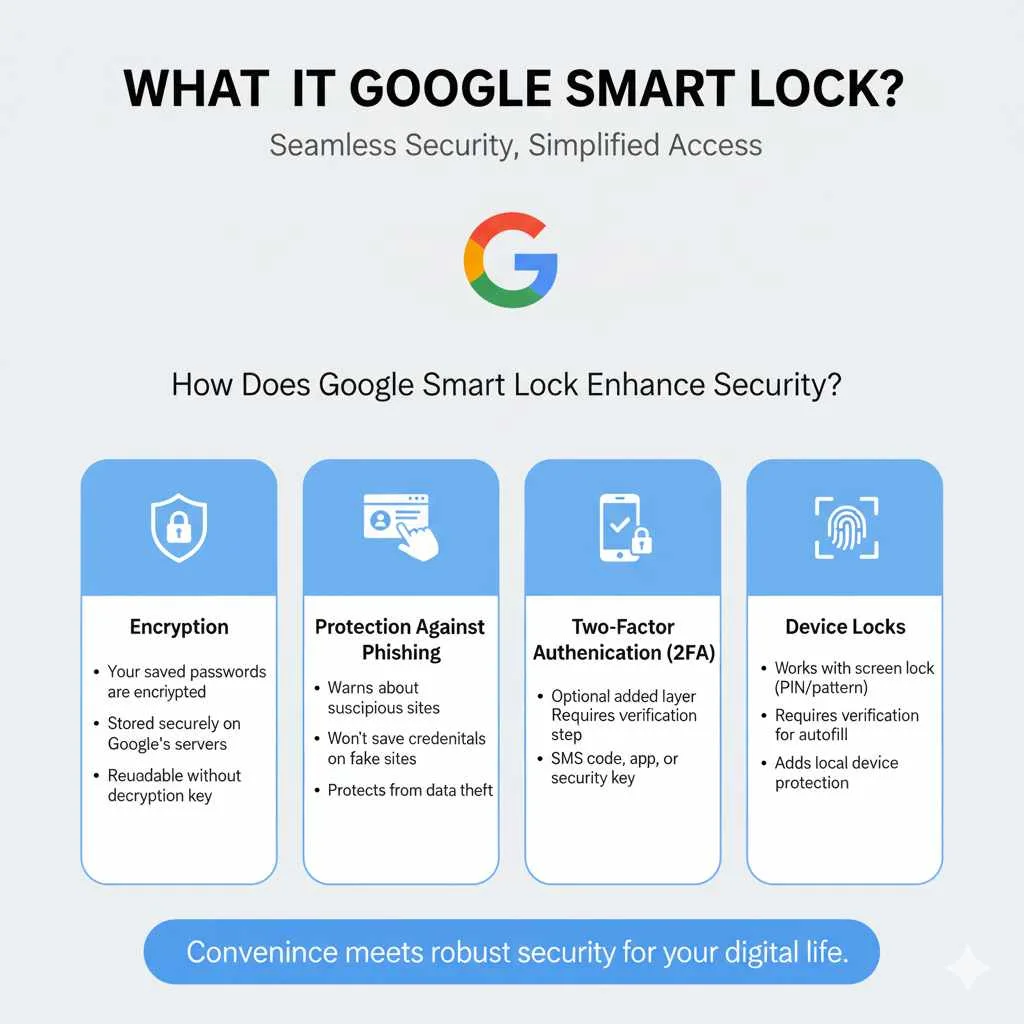
How Does Google Smart Lock Enhance Security?
You might be wondering, “Is it safe to let something else store my passwords?” That’s a very important question! Google Smart Lock is built with security as a top priority. Instead of asking you to remember complex passwords for every site, it provides multiple layers of protection for the ones it stores:
- Encryption: Your saved passwords are encrypted when they are stored on Google’s servers. This means they are scrambled and unreadable to anyone without the proper decryption key.
- Protection Against Phishing: Smart Lock helps protect you from phishing attempts by not offering to save your login details on suspicious websites. If it detects a site that might be trying to trick you into revealing your information, it won’t prompt you to save your password there.
- Two-Factor Authentication (2FA): For added security, you can enable two-factor authentication on your Google account. This means that even if someone somehow got your password, they would still need a second verification step (like a code sent to your phone) to access your account. You can learn more about securing your Google Account directly from Google Security Help.
- Device Locks: Smart Lock cooperates with your device’s security features. For instance, on Android, it can use your screen lock (PIN, pattern, fingerprint, or face unlock) to verify your identity before it autofills passwords, adding another layer of protection.
By using these methods, Google Smart Lock aims to provide a balance between convenience and robust security. It’s generally considered much safer than reusing weak passwords or writing them down on sticky notes.
Understanding the Two Main Features of Google Smart Lock
Google Smart Lock isn’t just one single thing; it’s a suite of helpful features designed to make accessing your digital life easier and more secure. The two most commonly used and impactful features are:
- Password Manager
- Device Unlock (primarily for Android)
Let’s dive into what each of these does.
1. Google Password Manager: Your Digital Vault
This is the core of what most people refer to when they talk about Google Smart Lock. The Password Manager is where your login information is saved. It’s accessible through your Google account and can be managed across all your devices where you’re signed in with that account.
How it Works: Saving Passwords
The process is wonderfully simple. The first time you log in to a website or app, after entering your correct username and password, you’ll often see a prompt from your browser (like Chrome) asking if you want to save your password. If you agree, Google Smart Lock securely stores these credentials. The next time you visit that same site or app, it will automatically suggest and fill in your username and password, often with just a click or a tap.
Example: Imagine you’re logging into your favorite online bookstore. You type your email and password. Chrome pops up with a small box saying, “Save password for [bookstore website]?” You tap or click “Save.” The next time you go to log in, you’ll see your email address already filled in, and a small key icon might appear in the password field, ready for you to click to reveal or fill in the password.
How it Works: Autopay Details
Beyond just passwords, Google Smart Lock’s Password Manager can also securely store your credit card and payment information. When you’re shopping online and reach the payment section, Smart Lock can automatically fill in your card number, expiry date, and billing address, saving you from having to type it all out each time. This is also managed with strong encryption and requires your verification before use.
Managing Your Saved Information
It’s important to know that you are in control of what Google Smart Lock saves. You can:
- View Saved Passwords: Go to passwords.google.com to see a list of all the passwords saved.
- Edit or Delete Saved Passwords: If a password changes or you no longer use a service, you can easily update or remove the saved details.
- Turn Off Password Saving: You can disable the feature altogether if you prefer not to save passwords automatically.
- Manage Payment Methods: Similarly, you can view, add, or remove saved credit cards and payment addresses.
Benefits of Using the Password Manager
- Convenience: No more typing! One-click logins save significant time.
- Stronger Passwords: Since you don’t have to remember them, you can use unique, complex passwords for every site, which is a huge security win.
- Cross-Device Sync: Passwords saved on your computer will be available on your phone and tablet, and vice-versa, as long as you’re logged into the same Google account.
- Secure Storage: Leverages Google’s robust security to protect your sensitive data.
2. Google Smart Lock for Devices: Keeping You Unlocked (When You Want To Be!)
This aspect of Smart Lock is mainly for Android users and focuses on keeping your phone or tablet unlocked in trusted situations, reducing the need to constantly enter your PIN, pattern, or password. It adds convenience without compromising security when you’re in a safe environment.
How it Works: Trusted Places
With “Trusted Places,” you can set specific locations, like your home or office, where your device will automatically stay unlocked. Using your device’s location services, Smart Lock recognizes when you’re in one of these pre-approved areas and bypasses the usual screen lock. If you leave that trusted zone, the security lock automatically reactivates.
- Example: You set your home address as a trusted place. When you’re at home, you can pick up your phone and use it without needing to enter your PIN. As soon as you leave your home and enter a different area, your phone will require your PIN or pattern to unlock.
How it Works: Trusted Devices
The “Trusted Devices” feature allows you to keep your Android device unlocked when it’s connected to a trusted Bluetooth device. This is perfect for when you’re using your phone with your car’s Bluetooth system or a smartwatch. As long as the trusted Bluetooth device is within range and connected, your phone will remain unlocked.
- Example: You pair your phone with your car’s Bluetooth. When your phone connects automatically to your car’s system, your phone stays unlocked. This means you can safely access navigation or music apps without needing to fiddle with your PIN while driving. If you disconnect from the Bluetooth, or the device goes out of range, the lock will re-engage.
How it Works: On-Body Detection
This feature uses your device’s sensors to detect if it’s being held or carried by you. If your device is in motion with you, like in your pocket or hand, it will stay unlocked. If it detects that the device has been stationary for a while (implying it might have been set down or taken by someone else), it will lock itself.
- Example: You unlock your phone and put it in your pocket. As long as you’re moving around, it stays unlocked. If you sit down and your phone is on a table for a few minutes, it will automatically lock itself.
Managing Device Unlock Settings
These device unlock features are managed through your Android device’s settings:
- Go to your device’s Settings.
- Search for “Smart Lock” or navigate to Security > Smart Lock.
- You’ll be prompted to enter your current PIN, pattern, or password to access these settings.
- Here, you can enable or disable Trusted Places, Trusted Devices, and On-Body Detection, and set up your preferred trusted devices and locations.
It’s important to note that these device unlock features are less about password management and more about convenience in specific, trusted scenarios. Always ensure your primary device lock (PIN, pattern, fingerprint) is strong and in place.
Is Google Smart Lock Right for You? Pros and Cons at a Glance
Like any technology, Google Smart Lock has its advantages and potential drawbacks. Understanding these can help you decide if and how you want to use it to its full potential.
The Upside: Benefits of Using Google Smart Lock
- Unmatched Convenience: The most obvious benefit is the sheer ease of access. Logging into websites and apps becomes a breeze.
- Enhanced Security for Most Users: By allowing you to use strong, unique passwords for every site without having to remember them, it significantly improves your security hygiene compared to reusing weak passwords.
- Time-Saving: Every moment spent typing in passwords or resetting forgotten ones is time you’ll get back.
- Cross-Platform Sync: Your saved logins are available on any device where you use your Google account, ensuring a consistent experience.
- Secure Data Handling: Google invests heavily in security, so your data is protected with robust encryption.
- Autofill for Forms: Beyond passwords, it can also fill in addresses and payment information, streamlining online transactions.
The Downside: Potential Drawbacks
- Security Concerns for Account Compromise: If your Google account itself is compromised (e.g., through a weak Google password or phishing), an attacker could potentially gain access to all your saved passwords and payment information. This is why securing your Google account with a strong, unique password and 2FA is paramount.
- Reliance on Google: You are placing a significant amount of trust in Google to manage your sensitive data. If you’re uncomfortable with this, other dedicated password managers might be a better fit.
- Device Unlock Limitations: Features like Trusted Places and Trusted Devices can pose a security risk if your device falls into the wrong hands in a trusted environment. For instance, if someone steals your phone while you’re at home and you didn’t manually lock it, they could access it.
- Browser and App Compatibility: While widely supported, there might be rare instances where a specific website or app doesn’t integrate perfectly with Google’s autofill.
- Potential Storage Limits/Issues: Although uncommon, very large numbers of saved passwords or payment details could potentially lead to sync delays or minor glitches.
Here’s a quick table summarizing the pros and cons:
| Pros | Cons |
|---|---|
| Convenient, one-click logins | Requires strong protection for your Google account |
| Enables use of strong, unique passwords | Relies on Google’s security infrastructure |
| Saves time on repetitive tasks | Device Unlock features can have security implications if not used carefully |
| Syncs across devices with your Google account | Limited compatibility with very obscure websites/apps |
| Secure storage through encryption | Not ideal for users who are highly distrustful of cloud-based solutions |
| Autofills addresses and payment details |
Overall, for most users, the convenience and security benefits of using Google Smart Lock, especially the Password Manager, outweigh the risks, provided their Google account is well-protected.
Setting Up and Using Google Smart Lock
Getting started with Google Smart Lock is straightforward. The experience can vary slightly depending on whether you’re using it on a computer via Chrome or on an Android device.
For Computer Users (via Google Chrome)
If you use Google Chrome as your web browser, Smart Lock is largely built-in. You don’t need to install anything extra.
Step 1: Enable Password Saving
- Open Chrome on your computer.
- Click the three vertical dots in the top-right corner to open the Chrome menu.
- Select Settings.
- In the left-hand menu, click on Autofill and passwords.
- Click on Google Password Manager.
- Under “Settings,” make sure the toggle for Offer to save passwords is turned ON.
Now, whenever you log in to a new website, Chrome will ask if you want to save the password. Simply click “Save” when prompted.
Step 2: Saving Payment Methods (Optional)
You can also enable autofill for payment methods:
- Go back to Chrome’s Settings.
- Click on Autofill and passwords.
- Click on Payment methods.
- Ensure the toggle for Save and fill payment methods is turned ON.
The next time you enter payment details on a website that supports it, Chrome will offer to save them.
Step 3: Accessing and Managing Your Saved Information
To view, edit, or delete passwords and payment methods:
- Go to passwords.google.com.
- You might be asked to enter your Google account password or use your device’s screen lock for verification.
- Here, you can search for specific sites, edit saved passwords, delete entries, or add new ones manually.
For Android Users
Smart Lock features for devices are managed within your phone’s settings.
Step 1: Accessing Smart Lock Settings
- Unlock your Android phone.
- Open the Settings app.
- Scroll down and tap on Security (or Security & privacy, depending on your phone model).
- Look for and tap on Smart Lock.
- You will need to enter your current PIN, pattern, or password to proceed.
Step 2: Configuring Device Unlock Features
- Trusted places: Tap on this option. You’ll need to ensure location services are enabled. Tap “Add home” to set your home address, or “Add trusted place” to designate other locations. Google uses a radius around these points, so they aren’t pinpoint accurate but generally useful for areas like home or work.
- Trusted devices: Tap this option. You’ll need to have Bluetooth devices paired with your phone. Tap “Add trusted device” and select a device from your list of paired Bluetooth items (e.g., your smartwatch, car’s stereo). Your phone will stay unlocked as long as it’s connected to this device.
- On-body detection: Tap this option to enable it. This helps keep your phone unlocked while you are carrying it.
Step 3: Password Manager Integration (Android Apps)
The Google Password Manager also works seamlessly with many Android apps that use web views or integrate with Google Sign-In.
- When you log into an app for the first time, you might see a prompt from Google asking if you want to save your password.
- If you agree, the details will be saved to your Google Account and will be available through the password manager on your phone and other devices.
- To manage these app passwords, open your phone’s Settings, go to Google > Manage your Google Account > Security > Password Manager.
Tips for Maximizing Google Smart Lock Usage Safely
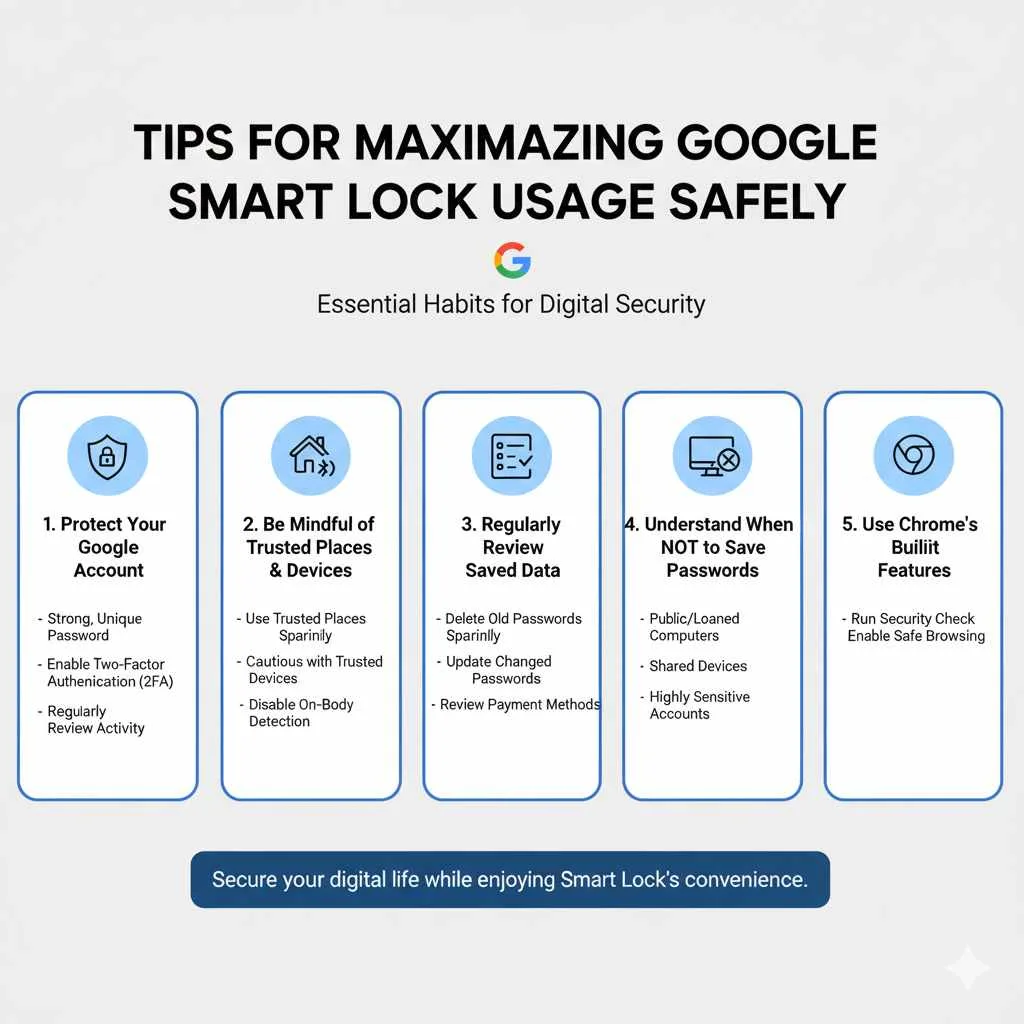
To get the most out of Google Smart Lock while keeping your digital life secure, here are some essential tips:
Protect Your Google Account Like It’s Gold
This is the single most critical step. Your Google account could be the key to your online kingdom. Ensure it has:
- A Strong, Unique Password: Don’t reuse your Google password anywhere else. Use a combination of upper and lowercase letters, numbers, and symbols. Consider a password manager to help generate and store this master password.
- Two-Factor Authentication (2FA): Enable 2FA immediately. Google offers several options, including using your phone as a key, receiving codes via text or authenticator app, or using security keys. This adds a vital layer of protection. You can set this up in your Google Account Security settings.
- Regularly Review Account Activity: Periodically check your Google Account for any unexpected logins or unusual activity.
Be Mindful of Trusted Places and Devices
While convenient, “Trusted Places” and “Trusted Devices” mean your phone could be unlocked if someone gains access to your home or has a paired Bluetooth device. Consider:
- Use Trusted Places Sparingly: Only set locations where you are absolutely certain of your security.
- Be Cautious with Trusted Devices: Ensure your trusted Bluetooth devices are also secure and not easily accessible by others.
- Disable On-Body Detection When Needed: If you’re going to be in a situation where you might hand your phone to someone temporarily (e.g., a party, or if someone needs to make a call), it might be wise to manually lock your phone first.
Regularly Review and Clean Up Your Saved Data
Your digital life changes, and so should your saved logins.
- Delete Old Passwords: If you no longer use a website or app, go to passwords.google.com and remove the saved credentials.
- Update Changed Passwords: If you change a password on a website, update it in Smart Lock immediately to avoid login issues.
- Review Payment Methods: Ensure your stored payment cards are current and remove any expired ones.
Understand When NOT to Save Passwords
Google Smart Lock is smart, but it’s not foolproof. It will generally warn you about suspicious sites, but it’s good to be aware:
- Public Computers: Never save passwords on shared or public computers.
- Loaned Devices: Do not save passwords if you are using someone else’s device, even if they are a friend.
- Highly Sensitive Accounts: For extremely sensitive accounts (like banking or critical work systems), some users prefer dedicated, highly secure password managers rather than browser-based solutions.
Use Chrome’s Built-in Security Features
Google Chrome offers additional security tools that can work alongside Smart Lock:
- Security Check: Chrome can perform a security check to see if your passwords have appeared in known data breaches, if your Chrome updates are current, and if you have any harmful extensions. You can find this in Settings > Security check.
- Safe Browsing: Ensure Chrome’s Safe Browsing feature is enabled to protect you from dangerous sites and downloads.
By following these practices, you can leverage the convenience of Google Smart Lock while maintaining a strong security posture for your digital life.
Frequently Asked Questions About Google Smart Lock
Here are some common questions beginner users have about Google Smart Lock:
Q1: Is Google Smart Lock truly secure?
Yes, Google Smart Lock is designed with security in mind, using encryption for saved passwords and integrating with your device’s security features. However, its security relies heavily on the security of your overall Google account. Protecting your Google account with a strong password and two-factor authentication is crucial.
Q2: Can Google Smart Lock save passwords for all apps and websites?
It generally works for most websites and many popular Android apps. For apps, it’s most effective if they use standard Google Sign-In or web-based login forms. Some highly customized or native app login systems might not integrate perfectly.
Q3: How do I access my saved passwords?
You can access all your saved passwords by visiting passwords.google.com from any web browser or through your Google account settings on your Android device.
Q4: What happens if I forget my Google account password?
If you forget your Google account password, you can use Google’s account recovery process. You will need to verify your identity through recovery emails, phone numbers, or security questions associated with your account. Once you regain access, you can then manage your Smart Lock settings.
Q5: Can I use Google Smart Lock on devices other than Android phones and Chrome?
While Smart Lock’s device unlock features are primarily for Android, the Google Password Manager works across different platforms. If you use Chrome on iOS or macOS, your saved passwords from your Google account can still be accessed and autofilled in Chrome on those devices.
Q6: What’s the difference between Google Smart Lock and other password managers like LastPass or 1Password?
Google Smart Lock is integrated directly into your Google ecosystem and is free. Dedicated password managers like LastPass or 1Password often offer more advanced features, such as cross-browser compatibility (working seamlessly with Firefox, Safari, etc.), more sophisticated security audits, secure note storage, and sometimes more robust sharing options. However, they often come with a subscription fee for full functionality.
Q7: Is it better to use Google Smart Lock or my phone’s built-in autofill?
On Android, Google Smart Lock often acts as the underlying system for credential autofill for many apps, working in conjunction with Chrome’s password manager. If you use Chrome and Android extensively, Google Smart Lock provides a unified experience. If you use different browsers or prefer more advanced features, a separate password manager might be beneficial.
Conclusion
In today’s interconnected world, managing passwords can feel like a never-ending chore. Google Smart Lock offers a remarkably simple, integrated solution to ease this burden. By securely storing your login credentials and offering convenient autofill options, it streamlines your online activities and minimizes the frustration of forgotten passwords.
Whether you’re saving passwords for your favorite shopping sites, logging into social media, or using convenient device unlock features on your Android phone, Smart Lock aims to make your digital interactions smoother and more secure. Remember, the key to leveraging its benefits safely lies in robust protection of your primary Google account. By enabling strong passwords and two-factor authentication, you build a solid foundation for all the convenience Google Smart Lock provides.
Embrace the simplicity, save yourself time, and strengthen your online security by understanding and utilizing Google Smart Lock effectively. It’s a powerful, built-in tool that helps you navigate the digital landscape with greater ease and confidence. Happy browsing!