
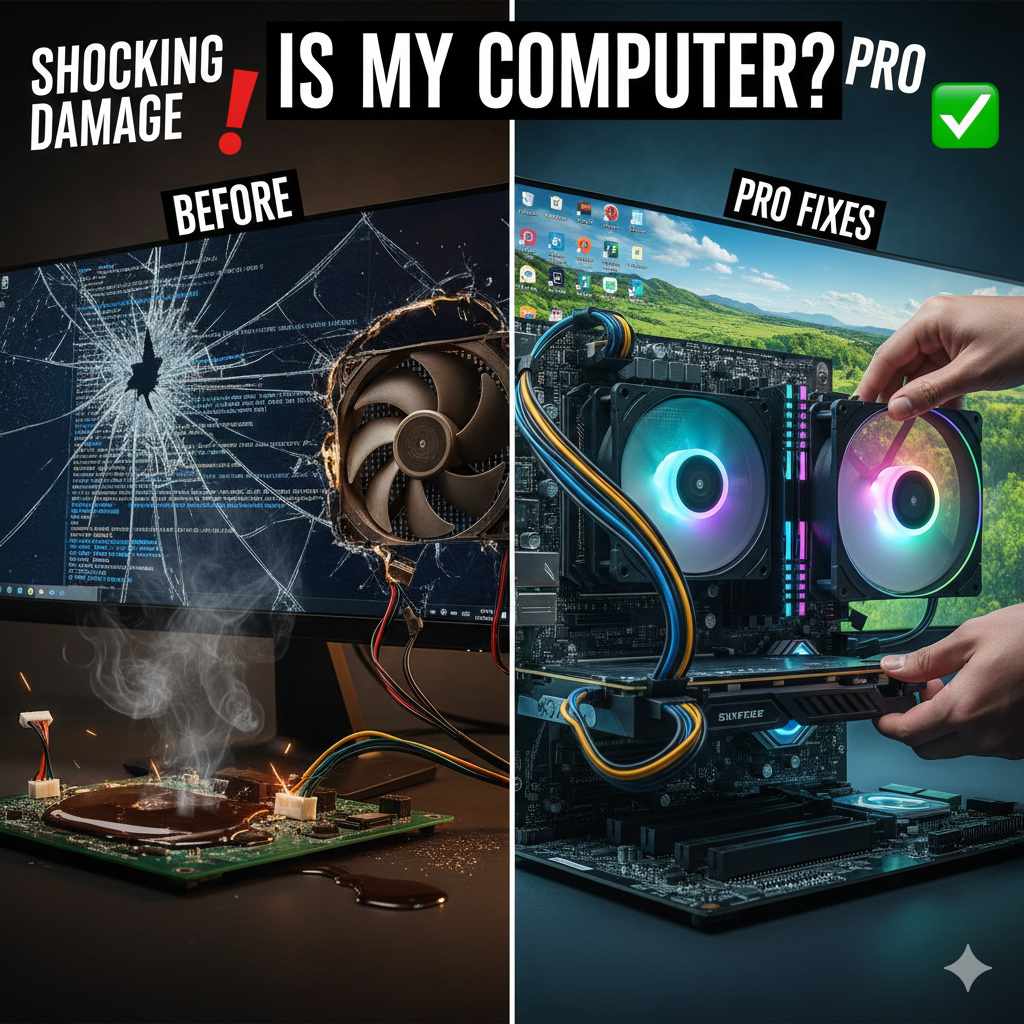
If your computer fell, first check for visible cracks or loose parts. If it powers on, back up your data immediately. For minor issues, simple fixes involve checking cable connections and running diagnostic software. For severe drops, professional help is usually needed to secure internal hardware.
Did your laptop take an accidental tumble off the nightstand? It’s terrifying when that happens. You hear the thud, and immediately your mind races. Will it ever turn on again? This feeling is common, and thankfully, many drops don’t cause permanent harm.
We are going to walk through exactly what to check, step by step, to see if your device is okay. You don’t need to be a mechanic or an IT guru to figure this out. We will use simple language to help you assess any potential shocking damage. Let’s get your confidence back and check your machine safely.
Understanding the Shock: What Happens When a Computer Falls?
When you drop a computer, the force doesn’t just stop when it hits the floor. That sudden stop sends shockwaves through the internal components. Think of it like hitting the brakes hard in your car—everything inside gets jostled.
For modern computers, especially those with Solid State Drives (SSDs), the chances of immediate catastrophe are lower than they used to be. However, certain parts are still very vulnerable.
The Three Main Areas of Concern
When assessing potential damage, we focus on three main systems:
- The Screen (Display): This is often the most visible damage. Cracks here require replacement.
- The Hard Drive/Storage: Older mechanical Hard Disk Drives (HDDs) are very sensitive to impacts while running. SSDs are much tougher.
- Internal Connections: Wires, RAM sticks, and motherboard connections can become slightly loose, leading to intermittent problems.
Our goal first is to ensure the shock didn’t cause any immediate, dangerous failures. Safety first means assessing the exterior before plugging anything in.

Step One: The Immediate External Safety Check
Before you even think about pressing the power button, we need to check the outside shell. This is the easiest assessment you can make, and it tells us a lot about the severity of the impact.
Visual Inspection: Look for Trouble
Gently pick up your device and slowly turn it over. Look for things that shouldn’t be there:
- Cracks or Punctures: Are there cracks on the casing, especially near corners or hinges? Deep cracks can expose sensitive electronics.
- Screen Damage: Check the screen surface. Look for spiderweb patterns, bright spots, or entire dark sections. If the screen looks bad, do not try to force it on yet (the backlighting might short something out).
- Loose Parts: Does anything feel wobbly? Pay special attention to hinges (on laptops) or any external ports (like USB or HDMI).
- Smell Test: Do you smell anything burning or like hot plastic? If you smell burning, unplug it immediately if it was plugged in, and do not attempt to power it on.
Checking Ports and Cables
Sometimes the shock loosens the connections holding power in place. If you are dealing with a desktop computer or an external display:
- Unplug the main power cord from the wall and from the back of the computer tower.
- Carefully inspect the power jack where the cord plugs into the computer. If it looks bent or pushed in, that port may be damaged.
- If it’s a laptop, check the charging port connection point for any visible looseness.
Safety Note: Never try to use a device if liquid was involved in the accident, or if you see exposed wires. If you have any doubt about electrical safety, stop here and consult a professional technician.
Step Two: The First Power Test (Low Risk)
If the visual inspection shows no major cracks, crushing, or burning smells, you can attempt a very cautious power test. This test is designed to see if the basic electrical systems survived the jolt.
For Laptops: The Battery Test
If your laptop has a removable main battery, remove it first. We want to try powering the system purely through the AC adapter (the charger). This isolates the battery from any potential shock damage while still allowing the main power circuit to test.
- Plug the charger into a confirmed working wall outlet.
- Connect the charger to your laptop.
- Look for any indicator lights (usually near the power port or on the side). Do they light up?
- If they light up normally, try pressing the power button once, gently.
For Desktops: The Surge Test
Desktop computers are often more resilient externally if the tower itself didn’t suffer a direct impact, as the internal parts are typically secured better.
- Ensure all peripherals (keyboard, mouse, monitor) are securely plugged in, but do not turn the monitor on yet.
- Plug the main power cord directly into a known good wall socket (avoiding power strips for this first test, just in case).
- Press the power button. Listen carefully.
What to Listen (and Look) For
During this initial startup attempt, your ears are just as important as your eyes:
- Good Signs: Fans spin up smoothly, you hear the normal startup beep or chime, and the manufacturer logo appears on the screen.
- Warning Signs: Loud grinding or scratching noises (hard drive failure), repeated beeping patterns (RAM or CPU issue), or the device powers on for a second and immediately shuts off (often a motherboard issue).
If the computer powers on and seems normal, great! But don’t celebrate yet. Proceed immediately to data backup.
Step Three: The Critical Data Rescue Plan
Even if the computer seems fine after the initial start-up, internal components might be stressed. A dropped hard drive can fail days or weeks later. Your absolute first priority, if it turns on, is data safety.
We rely on external storage for this. If you don’t have one, this is the time to buy one—a small investment to save potentially years of photos and important documents.
How to Back Up Data Quickly
If the operating system loads normally, follow these steps:
- Connect an external hard drive or a large USB stick to your computer.
- Open your file explorer (Finder on Mac, File Explorer on Windows).
- Prioritize essential folders: Documents, Pictures, Desktop, Downloads, and your specific application data folders.
- Copy these folders directly onto the external drive. Do not just drag and drop; copy and paste, then verify the copied files open correctly on the external drive.
If you are worried about the drive failing during the transfer, copy the most critical files first. Less important items can be copied later if the machine survives longer.
If the computer will not boot past the manufacturer logo, you might need advanced methods to pull the drive out and connect it as an external device to another working computer. This often requires a simple SATA to USB Adapter.
Step Four: Diagnosing Common Post-Drop Symptoms
The drop might not have caused a catastrophic failure but instead triggered minor, annoying glitches. Here’s how to troubleshoot the most common issues that happen after a physical jolt.
Symptom 1: Screen Flickering or Display Issues
If the monitor flickers, shows strange colors, or goes black intermittently, the display cable connecting the screen to the motherboard might have been jarred loose.
Fix Attempt (Laptop): Gently flex the lid open and closed while watching the screen. If the picture changes when you move the lid, the flexible ribbon cable (LVDS cable) is loose or damaged. This usually requires opening the laptop casing, which might be best left to a repair shop unless you feel very comfortable.
Fix Attempt (Desktop): Check the cable connection at the back of your graphics card or motherboard (HDMI/DisplayPort/VGA). Unplug it and plug it back in firmly on both ends.
Symptom 2: Random Reboots or Crashes
This is often related to RAM (memory) or overheating, but a drop can dislodge a RAM module even if it looks seated correctly.
The RAM Reseat Fix:
- Shut down and unplug the device completely.
- Locate the access panel (usually on the underside of a laptop or after opening the side panel of a desktop).
- Carefully unclip the memory sticks (RAM). They usually have small metal clips on the sides.
- Remove the RAM sticks completely.
- Gently blow any dust out of the slot, then firmly push the sticks back into their slots until you hear a distinct click from both metal clips locking them in place.
- Test the computer again.
Symptom 3: Keyboard or Trackpad Not Working Correctly
If only a few keys stop working, or the trackpad moves in erratic ways, the flat ribbon cable underneath the keyboard assembly is likely the culprit.
Troubleshooting Tip: If you are using a desktop or an external keyboard with a laptop, and the external keyboard works fine, this confirms the internal keyboard connection is the issue. For laptops, accessing this cable means removing the keyboard assembly, which varies greatly by model.
Using Diagnostic Tools for Hidden Damage
Modern computers have built-in ways to check their hardware health. If the computer boots into the operating system, run these checks. If you cannot boot, skip to the next section.
Table 1: Essential Diagnostic Checks by Operating System
| System | Tool Name | What it Checks | How to Run (Beginner Friendly) |
|---|---|---|---|
| Windows (Modern) | Windows Memory Diagnostic | RAM integrity and data errors. | Search “Windows Memory Diagnostic” in the Start Menu and follow the prompts to restart. |
| Windows (General) | Event Viewer | Records critical errors that happened during startup or operation. | Search “Event Viewer,” look under “Windows Logs” -> “System” for errors flagged immediately after the drop/reboot. |
| macOS | Apple Diagnostics (or Apple Hardware Test) | Comprehensive hardware check for many components. | Restart Mac and immediately press and hold the ‘D’ key until the diagnostics screen appears. |
Pay close attention to any storage drive diagnostics. If the drive reports any “Reallocated Sector Count” or “Pending Sector Count” errors after the fall, your drive is failing and must be replaced immediately after backing up everything.
When to Admit Defeat and Call a Pro
While we love DIY fixes, some damage is too serious or too complex for the average driver to fix safely. If you encounter any of the following scenarios, it is time to take your device to a reputable local computer service center. Trying to force power onto a shorted motherboard can cause further, expensive damage.
Red Flags Requiring Professional Service
- No Power at All: If you press the power button and absolutely nothing happens—no lights, no fans, no sound—the entire main board or power regulator might be destroyed.
- Visible Smoke or Burning Smell: This indicates a severe electrical short. Do not plug it in again.
- Constant Loud Clicking (HDD): This is the classic sound of a mechanical hard drive head crashing onto the platters. Data recovery specialists may be needed, as standard repair shops cannot fix this.
- Screen is Shattered and the Computer Won’t Boot: If the screen is cracked, and the machine won’t start even when connected to an external monitor, the connection to the GPU (Graphics Processing Unit) or the motherboard display circuit is likely damaged.
Remember, a professional technician has specialized tools, like multimeters and diagnostic programmers, that allow them to pinpoint exact failures much faster than guesswork. When dealing with potential motherboard or power supply issues, their expertise saves time and prevents dangerous mistakes.
Preventing Future Shocking Damage
Once you’ve confirmed your computer is okay (or have moved it to a repair shop), let’s talk about prevention. Accidents happen, but we can make them less likely or less severe next time.
Best Practices for Drop Protection
- Use Quality Sleeves and Cases: A good, padded neoprene sleeve or a rugged hard-shell case absorbs the initial impact far better than bare metal or plastic. Think of it like putting shock absorbers on your vehicle.
- Keep Liquids Away: Liquids + Drops equal a recipe for disaster. A spill on a nightstand can lead to a short when the device is moved, and the resulting combo impact is often worse than a dry drop.
- Secure Your Workspace: Don’t leave electronics balanced precariously near edges. A dedicated, stable surface drastically reduces the risk of accidental nudges.
- Enable Cloud Syncing: Even if the hardware survives, ensure your files synchronize constantly to a cloud service (like OneDrive, Dropbox, or iCloud). This ensures your data is safe even if the physical machine is totaled.
For those who travel or work in rougher environments, consider looking into MIL-STD rated protective gear for your laptop. While overkill for home use, it shows the level of protection available against serious physical shocks. Organizations like the U.S. Army rely on standardized testing (MIL-STD-810G) for durability, which can give you an idea of what truly rugged equipment involves.

FAQ: Quick Answers for Post-Drop Anxiety
Q1: How fast should I back up my computer after a drop?
A: Immediately. If the computer powers on, back up all critical files within the first hour. A temporary fault can become a permanent failure very quickly after physical trauma.
Q2: Is a dropped desktop computer safer than a dropped laptop?
A: Generally, yes, desktops are safer. The components are heavier and more rigidly mounted inside a large metal case. Laptops are designed to be portable, meaning their components are densely packed, suspended, and connected via flexible ribbon cables that are very susceptible to vibrations and shock.
Q3: My screen looks fine, but the laptop won’t charge anymore. What’s wrong?
A: The charging port (DC Jack) likely took the brunt of the impact or its internal solder joints cracked. This usually requires soldering work to replace the jack on the motherboard or daughterboard, which is best done by a repair technician.
Q4: Should I try to boot it up if I hear a strange clicking sound?
A: Absolutely not. The clicking indicates a mechanical hard drive failure. Every time you power it on, the read/write heads scrape the data platters, destroying more data. Power it down immediately and consult a data recovery service if the data is irreplaceable.
Q5: If my computer fell from a low nightstand (about 2 feet), is it probably fine?
A: Most modern laptops and desktops have a good chance of surviving a short, 2-foot drop, especially if they land on carpet or a soft surface and are not running a mechanical hard drive. Proceed with external inspection (Step One) before testing power.
Q6: Can physical shock damage my CPU?
A: It is rare for a desktop CPU to be damaged because they sit firmly in a socket. For laptops, if the connector underneath the CPU (like a high-end gaming laptop) is stressed or warped by the drop, it can cause performance issues or failure due to poor contact.
Your Next Steps: Reassurance and Action
A sudden drop can shake your confidence, but it doesn’t have to mean the end of your computer. What truly matters is how you respond in those first few moments. By checking the exterior carefully, testing power cautiously, and backing up your data immediately, you dramatically reduce the risk of long-term loss. Many modern systems are built to handle minor impacts, especially those with solid-state drives.
Even if small issues appear later, simple troubleshooting steps can often resolve them. And when the damage is more serious, knowing when to seek professional help protects both your hardware and your valuable files.
In the end, preparation is your strongest defense. Regular backups, secure placement, and protective cases turn accidents into manageable setbacks instead of disasters. Stay calm, act smart, and your computer — and your data — will be far safer moving forward.